London Conference Room
Tap the touch screen on the table. Both front screens and the room sound turn on by themselves.
Teams meeting? Tap Join next to your meeting on the touch screen.
To show your laptop, plug the table HDMI cable into it.
What do you need to do?
Tap one. We'll take you right to it.
Teams Meetings
Join, start, mute, end
Share My Screen
Table HDMI or Teams on your laptop
Microphones
Seat mute and lights
Camera
Tracking, manual, presets
Crestron 10" touch screen
The touch screen on the table. Join Teams meetings, mute, change the volume and open the camera controls here.
Two Samsung 85" 4K displays
The front screens. In a call with something shared, one shows the people and the other shows what is shared.
Crestron IV-CAMHK camera
An auto-tracking camera. It can follow whoever is talking or show the whole table.
16 table microphones
One by each seat, each with a mute button and a light. Green means live, red means muted.
Q-SYS audio processor
Runs the room microphones and speakers.
Table HDMI cable
Plug it into your laptop to show your screen.
The Teams Touch Screen
The buttons you will use
This is the Teams home screen when no meeting is running. Your room name and meetings will be different from the example.
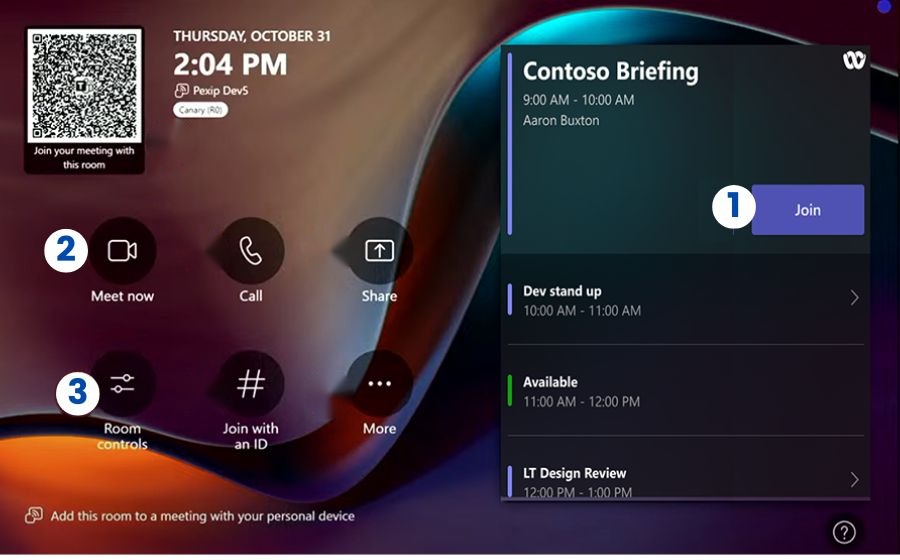
Join · join a meeting this room was invited to. Meetings are listed by time on the right.
Meet now · start a meeting right now and add people.
Room controls · opens this room's camera controls: tracking, manual aiming and presets.
Just walk in and tap the screen. If the room was in standby, everything wakes up by itself.
Join a Scheduled Meeting
One-touch join
Tap the touch screen to wake the room.
Find your meeting on the touch screen.
Tap Join next to the meeting title.
Wait a few seconds. The meeting opens on the front screens.
Don't see your meeting? It only shows up if this room was invited. Ask the organizer to add London Conference Room to the invite, or add the room from your laptop (below).
Start a Meeting Right Now
Instant meeting, no invite needed
Tap Meet now on the touch screen. The meeting starts.
Search for the people you want to add and tap their names. Teams calls them in.
Join on Your Laptop and Add the Room
Proximity join from Teams on your laptop
Joining from Teams on your laptop? You can bring the room into the meeting at the same time.
In Teams on your laptop, click Join on your meeting.
On the screen before you join, pick Room audio. If the room isn't suggested, type London under Search for a room and pick the room.
Click Join now. The room joins with you.
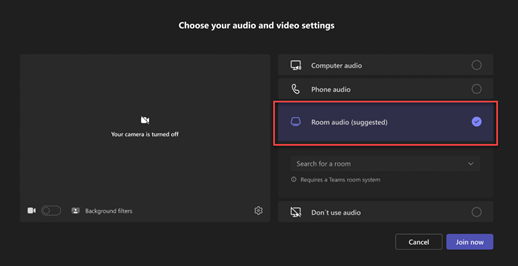
Your laptop's mic and speakers stay off, so there is no echo. The room's table microphones and speakers carry the sound.
Keep Bluetooth on. Your laptop uses it to find the room nearby.
Mute and Unmute the Room
So the other side can't hear you
Tap the Mic (microphone) icon on the touch screen to mute.
Tap it again to unmute.
This mutes all 16 table mics at once. To mute just your seat, see Microphones.
Change the Volume
Louder or quieter
Use the volume control on the touch screen. In a Teams meeting, tap − or + next to the speaker icon. It changes the sound of the call and of anything you present.
Two Screens During a Call
People on one, shared content on the other
When someone shares slides or a document in a Teams call, one front screen shows the people on the call and the other shows what is being shared.
End the Meeting
When you are done
Tap the red Leave button on the touch screen.
Want to end it for everyone? Tap End Meeting for All if you see it.
Presenting from a laptop? Unplug the table HDMI cable.
The table mic lights turn off when the call ends. Nothing else to turn off: when no meeting is running and the room is empty, both screens go into standby by themselves.
Mute Just Your Seat
The button by your table mic
During a call, with Teams unmuted, tap the button by your table mic.
Its light turns red. Only your mic is muted.
Tap it again to unmute your mic.
Your seat stays muted even if someone mutes and unmutes the whole room from the touch screen.
Mute the Whole Room
From the touch screen
Tap the Mic (microphone) icon on the touch screen to mute.
Tap it again to unmute.
While Teams is muted, all 16 table mic lights turn red and the buttons on the table mics are locked until Teams is unmuted.
What the Mic Lights Mean
Green, red or off
Red means that mic is muted, or the whole room is muted from the touch screen.
During a call, glance at the light by your mic. Green means people on the call can hear you.
Sound Your Best
Keep the table mics clear
Keep papers, laptops and drinks off and away from the 16 table mics.
Open the Camera Controls
Room controls on the touch screen
Tap Room controls on the Teams touch screen.
Pick a camera mode: Speaker Tracking, Group / Full Room or Manual Controls (more below).
When you are done, tap Exit in the upper right corner. You are back on the Teams screen and your meeting.
Illustration. The real page may be laid out differently, but it has these buttons.
Speaker Tracking · the camera follows whoever is talking.
Group / Full Room · a wide shot of the whole table.
Manual Controls · aim and zoom the camera yourself.
Arrow pad and zoom + − · aim and zoom in Manual Controls.
Preset 1 Preset 2 Preset 3 · saved camera angles.
Exit · close the camera controls and go back to Teams.
Speaker Tracking
Follows whoever is talking
The camera finds whoever is speaking in the room, zooms in and follows them. Nothing to aim.
Tap Room controls, then Speaker Tracking.
Tap Exit when you are done.
Group / Full Room
Everyone at the table at once
Shows the whole conference table in one wide shot, so everyone in the room is on screen at the same time.
Tap Room controls, then Group / Full Room.
Tap Exit when you are done.
Aim the Camera Yourself
Manual Controls
Manual Controls turns off auto-tracking so you can point and zoom the camera yourself, and use the presets.
Tap Room controls, then Manual Controls.
Use the arrow pad (up, down, left, right) to aim the camera.
Tap + to zoom in and − to zoom out.
Tap Exit when you are done.
Want the camera to follow people again? Tap Speaker Tracking.
Camera Presets 1, 2 and 3
Saved camera angles
Presets work in Manual Controls.
Go to a saved angle
Tap Preset 1, Preset 2 or Preset 3. The camera moves to that angle.
Save an angle
Aim and zoom the camera the way you want it.
Press and hold a preset button for 3 seconds, until the button flashes. That means it is saved.
Saving replaces the angle that was on that button, for everyone who uses the room.
The screens are dark.
Tap the touch screen to wake the room.
The button on my table mic does nothing.
It only works during a call, and only while Teams is not muted on the touch screen.
People on the call can't hear us.
Look at the table mic lights. All red: tap Mic on the touch screen to unmute. Only your mic red: tap the button by your mic.
My laptop isn't showing on the screens.
Unplug the table HDMI cable and plug it back in firmly.
The camera isn't following the person talking.
Tap Room controls, then Speaker Tracking. In Manual Controls the camera stays where you aimed it.
The touch screen is stuck on the camera controls.
Tap Exit in the upper right corner to go back to Teams.
Echo or a loud squeal.
Usually someone in the room joined the call on a laptop with its sound on. Turn off that laptop's mic and speakers, or rejoin with Don't use audio.
Technical problem, or need help setting up an important meeting? Contact your local IT / Facilities Helpdesk, or call or email Taurus Technologies support.