Centers of Excellence (COE)
Tap the touch screen on the table. All 6 screens turn on by themselves.
Teams meeting? Tap Join next to your meeting on the touch screen.
To show your laptop, plug an HDMI cable into the Front, Side or Window wall plate.
What do you need to do?
Tap one. We'll take you right to it.
Teams Meetings
Join, start, mute, end
Share My Screen
Wall plates or Teams on your laptop
Microphones
Ceiling mics and lapel mic
Camera
Auto-tracking, 6 cameras, presets
Crestron 10" touch screen
The touch screen on the table. Join Teams meetings, mute, change the volume and open the camera controls here.
Six Samsung 4K displays
The room screens. They show the meeting and anything you share.
Automate VX2 with 6 cameras
Six cameras around the room. The system shows whoever is talking.
Two Shure MXA910 ceiling mics
Microphones in the ceiling hear the room. A green light ring means live, red means muted.
Shure wireless lapel mic
A clip-on mic with a bodypack, for the presenter.
Three HDMI wall plates
Front, Side and Window. Plug your laptop into any of them.
The Teams Touch Screen
The buttons you will use
This is the Teams home screen when no meeting is running. Your room name and meetings will be different from the example.
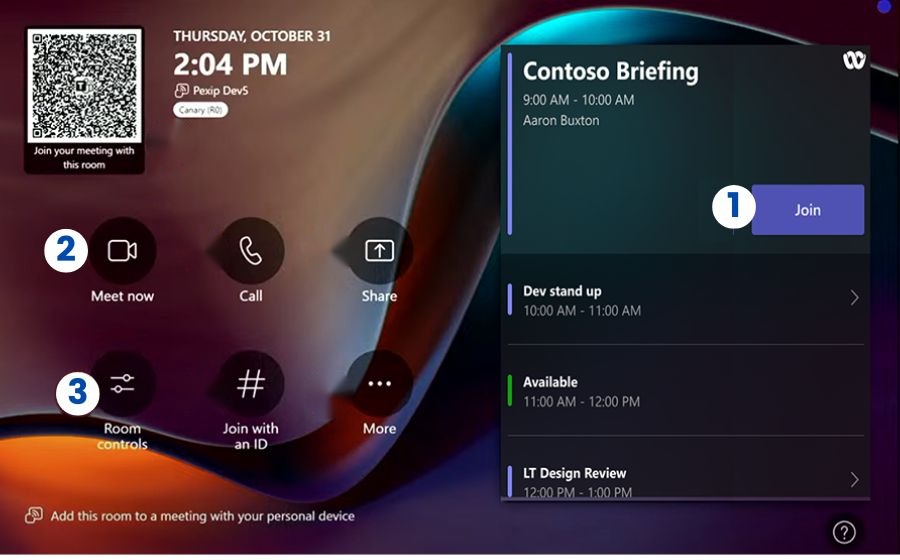
Join · join a meeting this room was invited to. Meetings are listed by time on the right.
Meet now · start a meeting right now and add people.
Room controls · opens this room's camera controls and the lapel mic volume.
Just walk in and tap the screen. If the room was in standby, everything wakes up by itself.
Join a Scheduled Meeting
One-touch join
Tap the touch screen to wake the room.
Find your meeting on the touch screen.
Tap Join next to the meeting title.
Wait a few seconds. The meeting opens on the room screens and the cameras wake up.
Don't see your meeting? It only shows up if this room was invited. Ask the organizer to add Centers of Excellence to the invite, or add the room from your laptop (below).
Start a Meeting Right Now
Instant meeting, no invite needed
Tap Meet now on the touch screen. The meeting starts.
Search for the people you want to add and tap their names. Teams calls them in.
Join on Your Laptop and Add the Room
Proximity join from Teams on your laptop
Joining from Teams on your laptop? You can bring the room into the meeting at the same time.
In Teams on your laptop, click Join on your meeting.
On the screen before you join, pick Room audio. If the room isn't suggested, type Centers under Search for a room and pick the room.
Click Join now. The room joins with you.
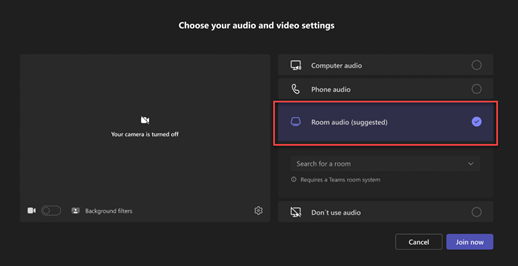
Your laptop's mic and speakers stay off, so there is no echo. The room's ceiling microphones and speakers carry the sound.
Keep Bluetooth on. Your laptop uses it to find the room nearby.
Mute and Unmute the Room
So the other side can't hear you
Tap the Mic (microphone) icon on the touch screen to mute.
Tap it again to unmute.
The lights on the ceiling microphones turn red while the room is muted.
Change the Volume
Louder or quieter
Use the volume control on the touch screen. In a Teams meeting, tap − or + next to the speaker icon.
End the Meeting
When you are done
Tap the red Leave button on the touch screen.
Want to end it for everyone? Tap End Meeting for All if you see it.
Presenting from a laptop? Unplug the HDMI cable from the wall plate.
Nothing else to turn off. When the room goes into standby, and every night at 7:00 PM, all 6 screens turn off and the cameras turn to their privacy position.
Mute and Unmute the Room
So the other side can't hear you
Tap the Mic (microphone) icon on the touch screen to mute.
Tap it again to unmute.
The lights on the ceiling microphones show you at a glance:
Wear the Lapel Mic
For the presenter
Switch on the wireless bodypack.
Clip the small mic to your collar.
When you are done, switch the bodypack off and put it back on its charging dock or where it is stored.
Lapel Mic Volume
In Room controls
Tap Room controls on the Teams touch screen.
On the right, find the Microphone Control card for the Wireless Lapel Microphone (DSP Input 1).
Drag the slider, or tap − or +, to set the level. The normal level is 70%.
Tap Exit when you are done.
Open the Camera Controls
Room controls on the touch screen
Tap Room controls on the Teams touch screen.
Pick a camera mode: Auto-Tracking or Manual Control (more below).
When you are done, tap Exit in the upper right corner. You are back on the Teams screen and your meeting.
Illustration. On the real page the lapel mic card is on the right, and the layout may differ.
Auto-Tracking · the room picks the camera for you. This is the normal mode.
Manual Control · pick a camera and aim it yourself.
Camera 1 Camera 3 Camera 5 · cut to that camera (in Manual Control).
Arrow pad and zoom + − · aim and zoom the selected camera.
Preset 1 Preset 2 Preset 3 · saved angles for the selected camera.
Wireless Lapel Microphone · lapel mic volume.
Exit · close the camera controls and go back to Teams.
Auto-Tracking
The normal mode. The room picks the camera.
The room switches between all 6 cameras by itself to show whoever is talking, and goes back to a wide shot of the room when nobody is talking.
Tap Room controls, then Auto-Tracking.
Tap Exit when you are done.
Pick a Camera and Aim It
Manual Control
Manual Control turns off automatic switching so you can pick a camera, aim and zoom it, and use its presets.
Tap Room controls, then Manual Control.
Tap Camera 1 (Front Left), Camera 3 (Side Wall) or Camera 5 (Window Wall). The call switches to that camera.
Use the arrow pad (up, down, left, right) to aim the camera.
Tap + to zoom in and − to zoom out.
Tap Exit when you are done.
Want the room to pick cameras again? Tap Auto-Tracking.
Camera Presets 1, 2 and 3
Saved angles, for each camera
Each camera has its own Preset 1, Preset 2 and Preset 3. They work in Manual Control.
Go to a saved angle
Pick a camera, then tap Preset 1, Preset 2 or Preset 3. That camera moves to the saved angle.
Save an angle
Pick a camera, then aim and zoom it the way you want it.
Press and hold a preset button for 3 seconds to save the angle to that preset.
Saving replaces the angle that was on that button, for everyone who uses the room.
The screens are dark.
Tap the touch screen to wake the room, or start a call.
People on the call can't hear us.
Look at the light rings on the ceiling mics. Red means muted: tap Mic on the touch screen to unmute.
Nobody can hear the lapel mic.
Check that the bodypack is switched on. Then tap Room controls and check the Wireless Lapel Microphone slider.
My laptop isn't showing from the wall plate.
Unplug the HDMI cable and plug it back in firmly at both ends: the laptop and the wall plate.
The room isn't showing the person talking.
Tap Room controls, then Auto-Tracking. In Manual Control the camera stays where you put it.
The touch screen is stuck on the camera controls.
Tap Exit in the upper right corner to go back to Teams.
Echo or a loud squeal.
Usually someone in the room joined the call on a laptop with its sound on. Turn off that laptop's mic and speakers, or rejoin with Don't use audio.
Technical problem, or need help setting up an important meeting? Contact your local IT / Facilities Helpdesk, or call or email Taurus Technologies support.