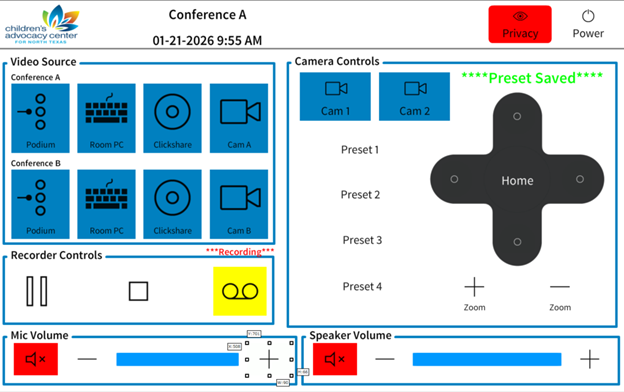
Privacy – will turn cameras away and turn off their video feed.
Power – triggers the shutdown request
Video Source – Select the source to display on ALL TV’s
Conference A – All Conference A’s sources.
Conference B – All Conference B’s sources.
HINT – If sources are “greyed” out then they are not available at this time.
Camera Controls –
Cam 1 and Cam 2 – Selects which Camera to control. If “greyed” out then the camera is not available at this time.
Preset 1 – 4 – Press to recall a previously saved camera position, to save a position move the camera into position then HOLD the preset until the green “****Preset Saved****” text appears.
Camera Dpad – Will steer the cam up, down, left, and right.
Home – Returns camera to its native home position.
Zoom + and – – Narrow or widens the cameras view.
Recorder Controls –
– Starts the recording. If highlighted yellow and/or the red “***Recording***” is visible then the session is recording.
– Stops the recording.
– Pauses the recording.
HINT – Recording controls can only be done from Conference A.
Mic Volume – Controls the Mute, Volume down ( -), and Volume Up ( + ) for the speech mics only. This is the mics that can be heard in the speakers over the room.
Speaker Volume – This is the master control for all Mute and volume of the room speakers.
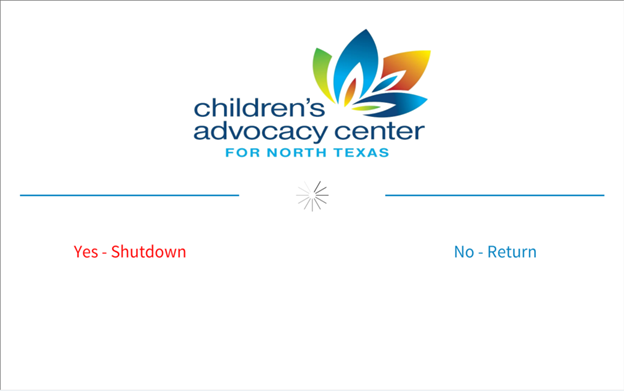
Shutdown Page
Yes – will power off the displays and set everything back to default.
No – will close the shutdown request page.
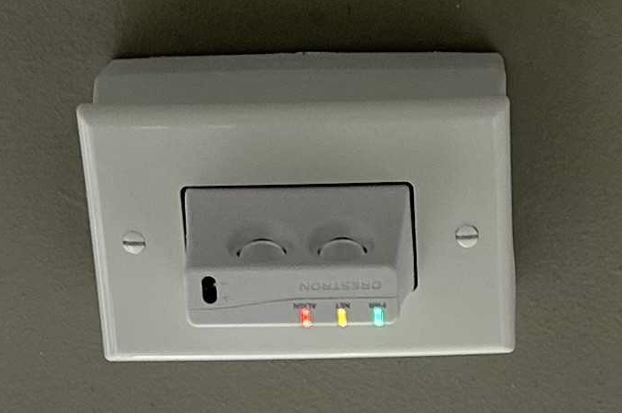
Partition Sensor
Red light – It detects the wall.
Yellow Light – It is online and with the system.
Green Light – It is being power.
The Sensor (Red light on/off) determines what sources and cameras are available to you (greyed out or not) in your room.