Stars Conference Room
What are you trying to do?
Tap your task — we'll take you right there.
Sources & Displays
Routing & audio selection
Cable Box
DIRECTV controls
Phone
VoIP dial pad
Troubleshooting
Common issues & contact
Touch Panel Main Page
Top bar, bottom bar, and routing center
The Main Page is your home screen. The top bar handles room navigation; the bottom bar handles instant audio mutes; the center holds the source-to-display routing grid.
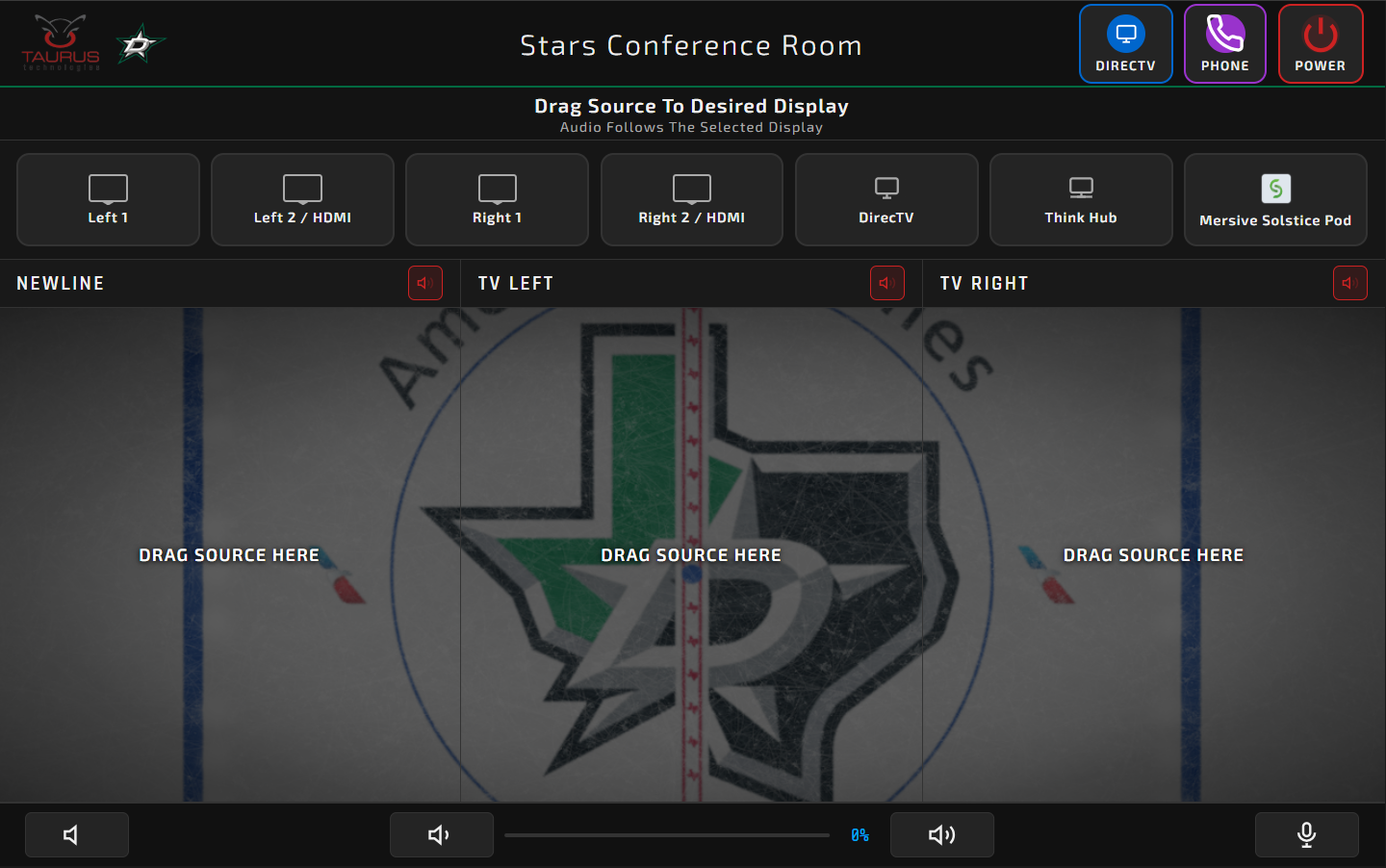
Top Bar
Center
Bottom Bar
Wake the Room
Tap the Start Page or trigger the occupancy sensor
When the room is dormant, the touch panel shows the Start Page — a single welcome screen that brings the system online with one tap.
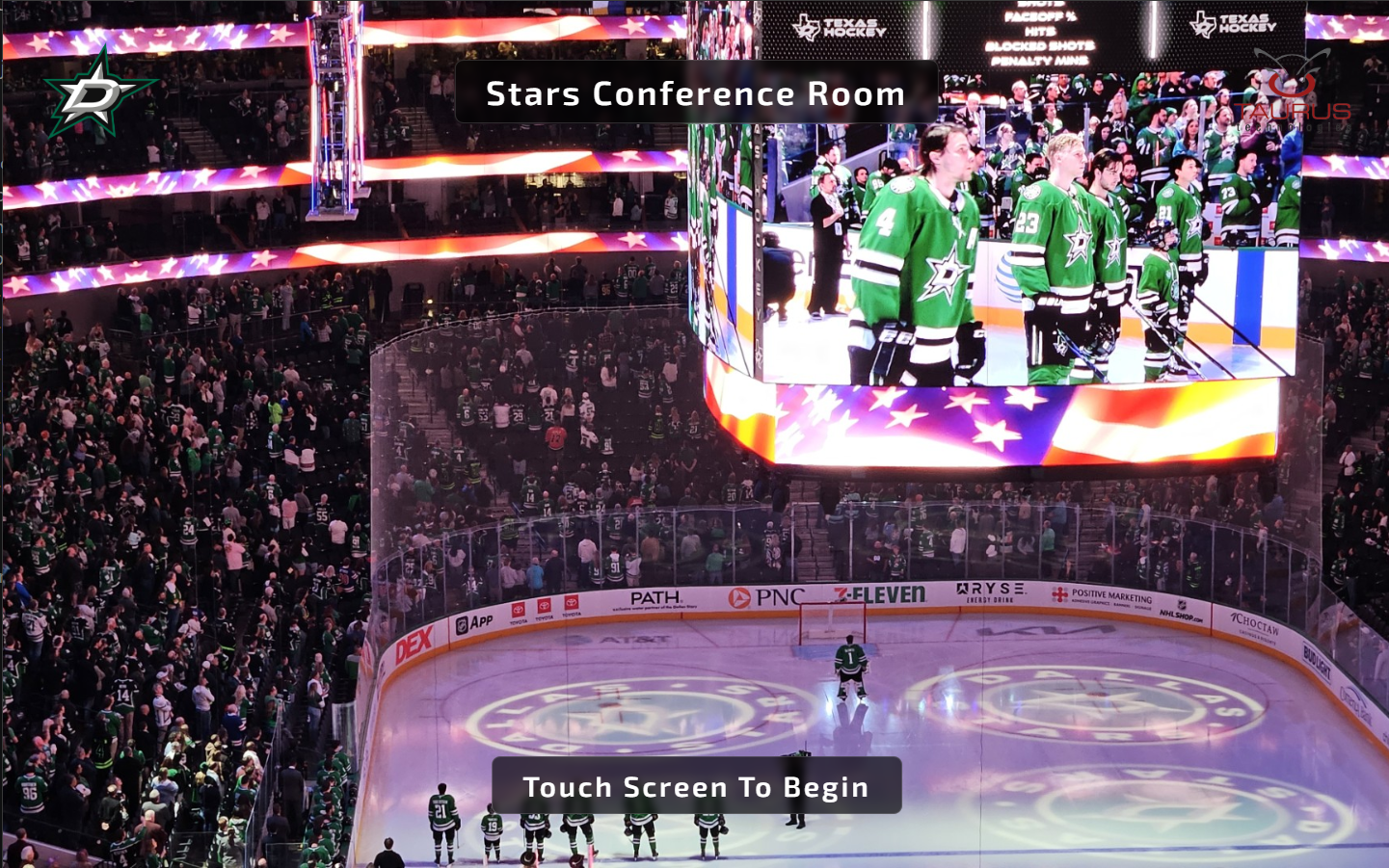
Auto-wake on entry: The room has an occupancy sensor — when you walk in, the system jumps straight to the Main Page. You'll only see the Start Page if the room was shut down while you were still inside.
Send a Source to a Display
Drag-and-drop from the source list onto a display
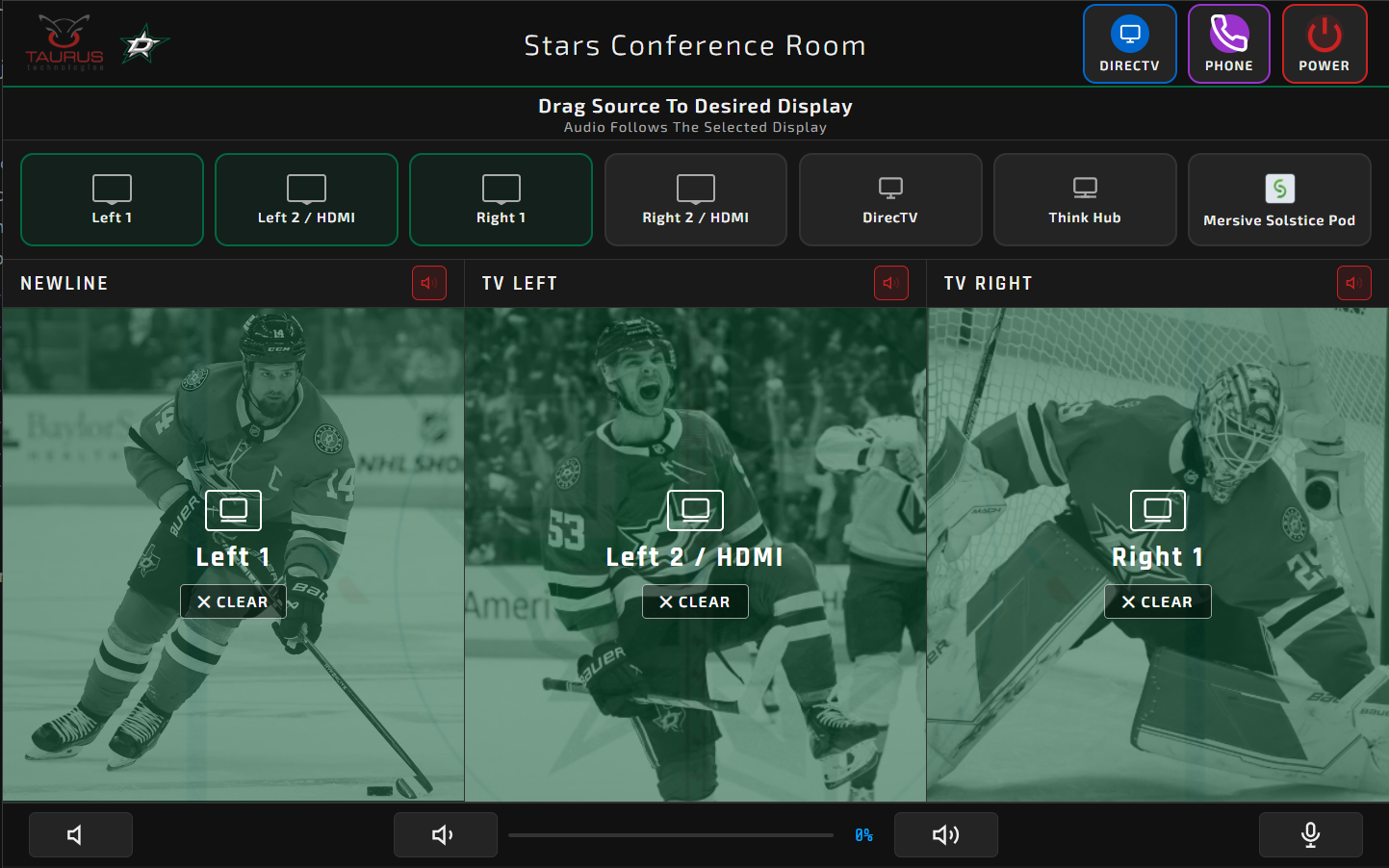
The center of the Main Page lists the seven sources available in the room and the three displays they can be sent to. Routing is drag-and-drop.
Choose Which Display Audio Plays
Three audio-select buttons next to the displays
Only one display's audio plays through the room speakers at a time. Three buttons next to the displays let you choose which one is live.
Speaker & Microphone Mute
Bottom bar, instant on/off
Either button illuminates red while mute is active.
Shut the Room Down
Power Controls in the Top Bar
Open the DIRECTV Controls
From the Cable Box Controls button in the Top Bar
Use the On-Screen Remote
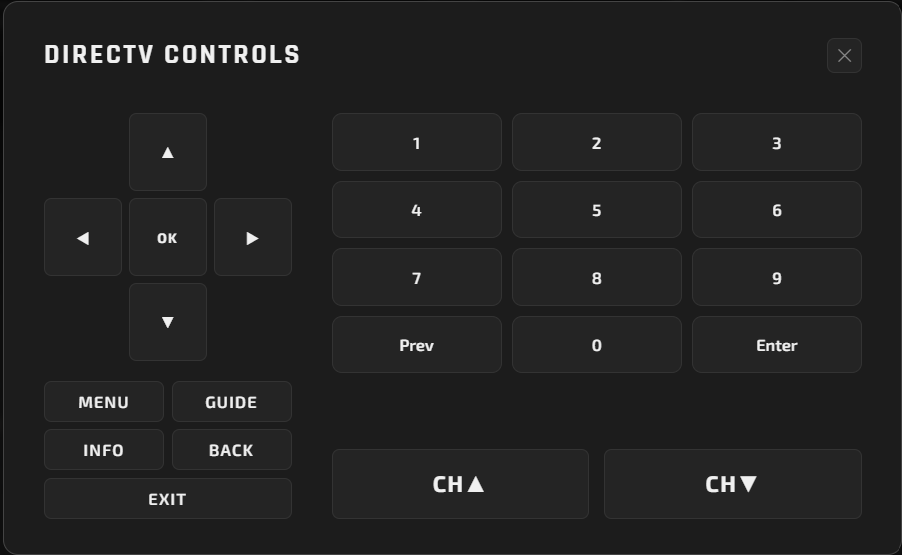
Mirrors a standard DIRECTV remote
The buttons on the DIRECTV popup map directly to the corresponding buttons on a physical remote — channel up/down, guide, volume, navigation, and so on. If you've used a DIRECTV remote before, the layout will feel familiar.
- Channel up / down — step through channels.
- Guide — open the on-screen program guide.
- Direction pad & Select — navigate on-screen menus.
- Number pad — jump directly to a channel by number.
Open the Phone Controls
From the Phone Controls button in the Top Bar
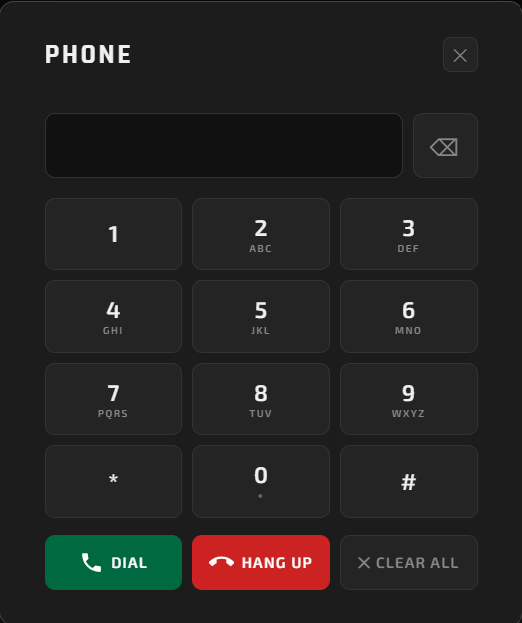
Place a Call
Enter the number and press Dial
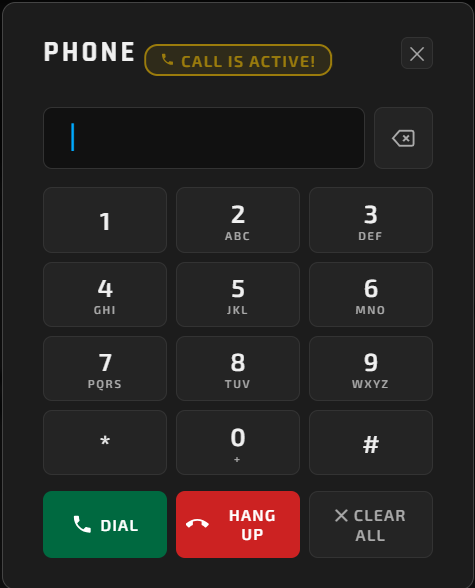
Active Call Indicator
Yellow banner shows when the line is live
While a call is active, a yellow "Call is Active" banner appears on both the Main Page and the Phone Controls popup so you can see at a glance that the line is live.
Display not powering on?
Confirm the source was dragged fully onto the display tile. The display powers on automatically when a source is routed to it. If it stays off, verify the display itself is plugged in and use its IR remote to confirm power.
No audio from the speakers?
Check that Speaker Mute on the bottom-left of the touch panel is not red. Then verify you've selected an audio source — only one of the three displays' audio plays at a time. Use the audio-select buttons next to the displays to choose.
Far end can't hear you on a call?
Check that the Microphone Mute button on the bottom-right of the touch panel is not red. If it's lit, tap it to unmute.
DIRECTV remote not responding?
Confirm the cable box has power and that the display is showing the correct input. Try pressing Guide on the popup to verify two-way communication, then re-attempt the channel change.
Phone won't dial out?
Re-enter the number and press Dial. If a yellow "Call is Active" banner is already showing, hang up the existing call before placing a new one.
Touch panel stuck on the Start Page?
Tap anywhere on the screen to wake the system. The Start Page only appears when the room was shut down while you were still inside; the occupancy sensor handles wake automatically when you walk in fresh.
Call or email us — we love to help.
(469) 630-9909
tech@taurustechinc.com