
AV User Guide
AV User GuideLand and Legal
Start Page
1
Touch anywhere on the screen to begin. This will take you to the Mode Select page. If there is an incoming phone call, a popup notification will appear on this screen.
Mode Select
1
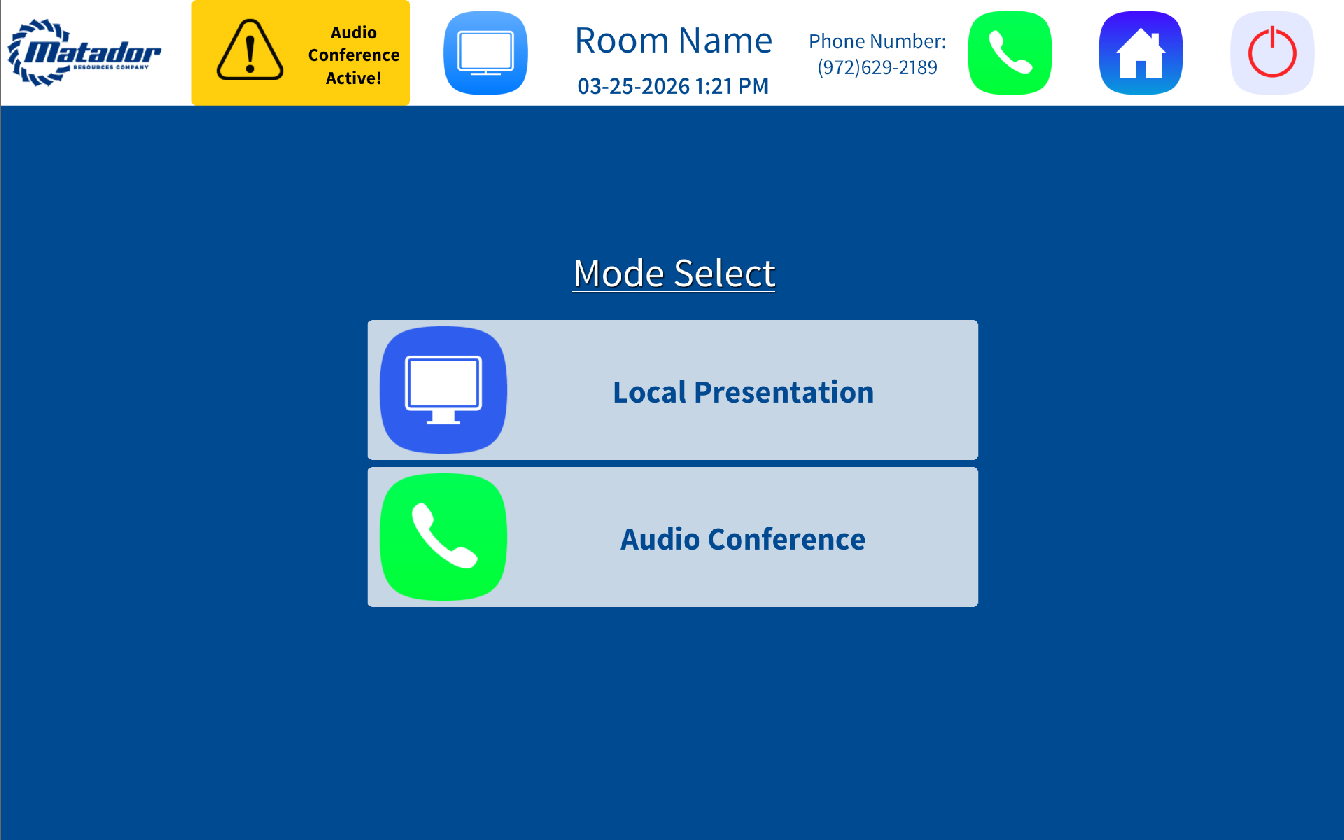
Local PresentationPress “Local Presentation” to make a presentation using video sources.
2
Audio ConferencePress “Audio Conference” to use the system as an in-room phone only.
Audio Conference (ATC)
1
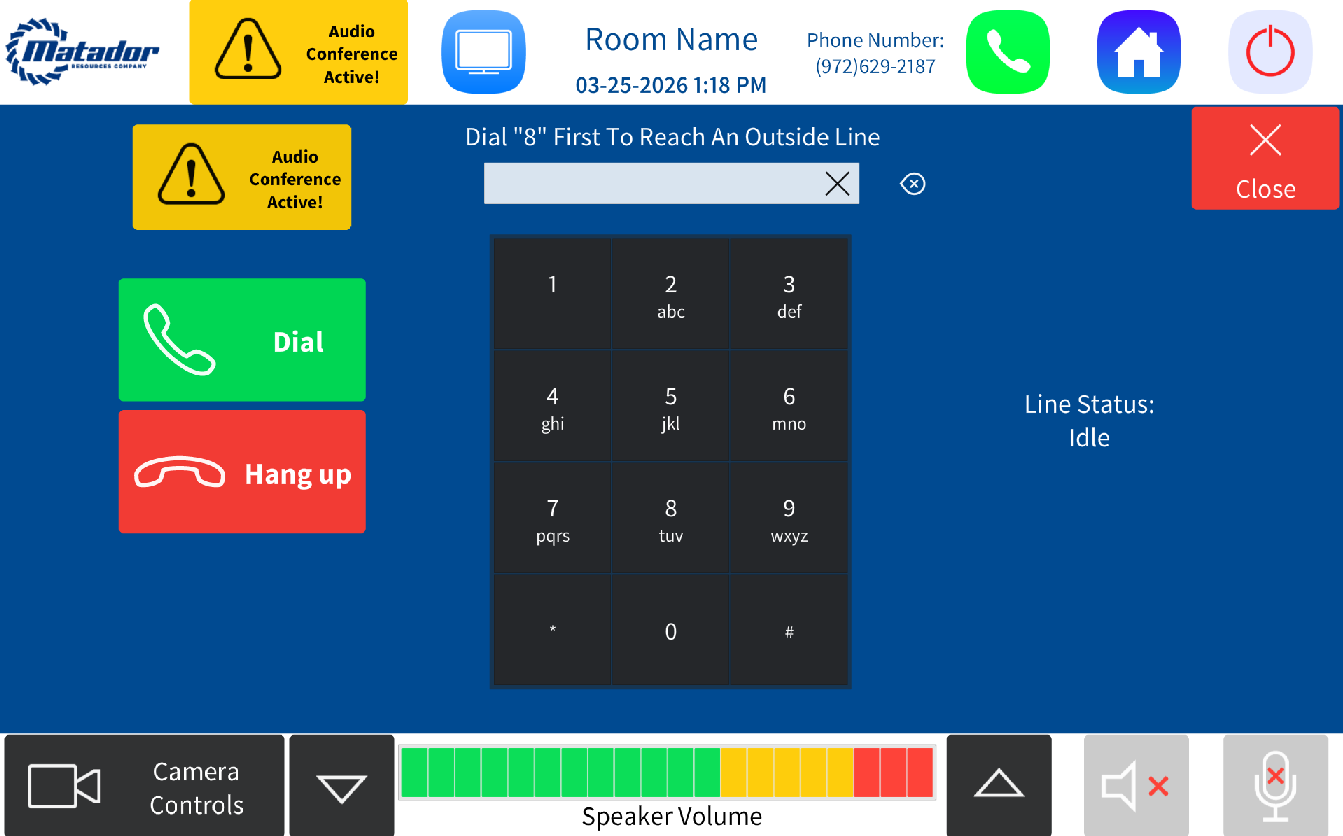
Dial a NumberUse the number pad to dial a phone number. The dialed number appears in the text field. Use Backspace to clear one character, or press the X in the text field to clear the entire entry.
2
Place the CallPress “Dial” to initiate the call. Press “Hang Up” during a call to end it.
3
Active Call IndicatorWhen a call is active, a yellow “Audio Conference Active!” indicator appears on this page and in the top bar.
Main Page Controls
Top Bar
1
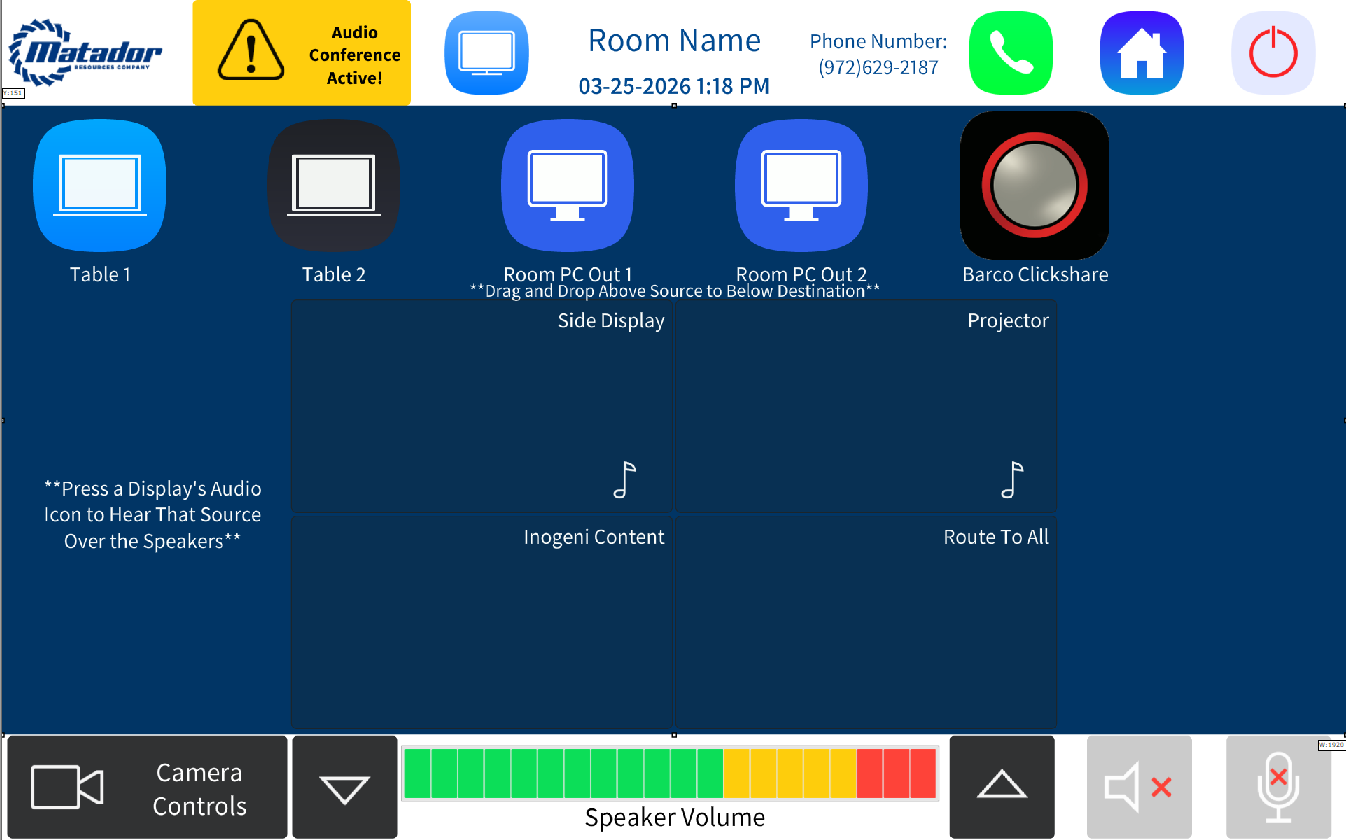
Four buttonsThe top bar contains four buttons: Display Settings, ATC Conference, Home, and Power Settings.
2
Active call indicatorA yellow indicator banner shows when an audio call is active and connected.
Bottom Bar — Volume & Mic
1
Volume Up / DownAdjust the speaker audio in the room.
2
Speaker MuteCuts all audio to the room speakers.
3
Microphone MuteMutes the ceiling microphone. The ceiling mic LED will be RED when mute is ON and GREEN when mute is OFF.
4
Camera ControlsPress “Camera Controls” to open camera adjustment settings.
Source & Destination Routing
1
SourcesTable 1, Table 2, Room PC Out 1, Room PC Out 2, and Barco Clickshare are displayed in a row at the top.
2
DestinationsSide Display, Projector, Inogeni Content, and Route to All are shown in a grid below.
3
RoutingDrag a source to a destination to route the video — the display will automatically power on and switch to the correct input.
4
Audio sourceThe music note icon in the bottom-right corner of each destination indicates which audio source plays through the room speakers. Only one audio source can be active at a time.
5
Inogeni ContentThe “Inogeni Content” destination shares your routed source with the conferencing PC. A video route must be made to this destination if using multiple sources in the camera feed.
Incoming Call
1
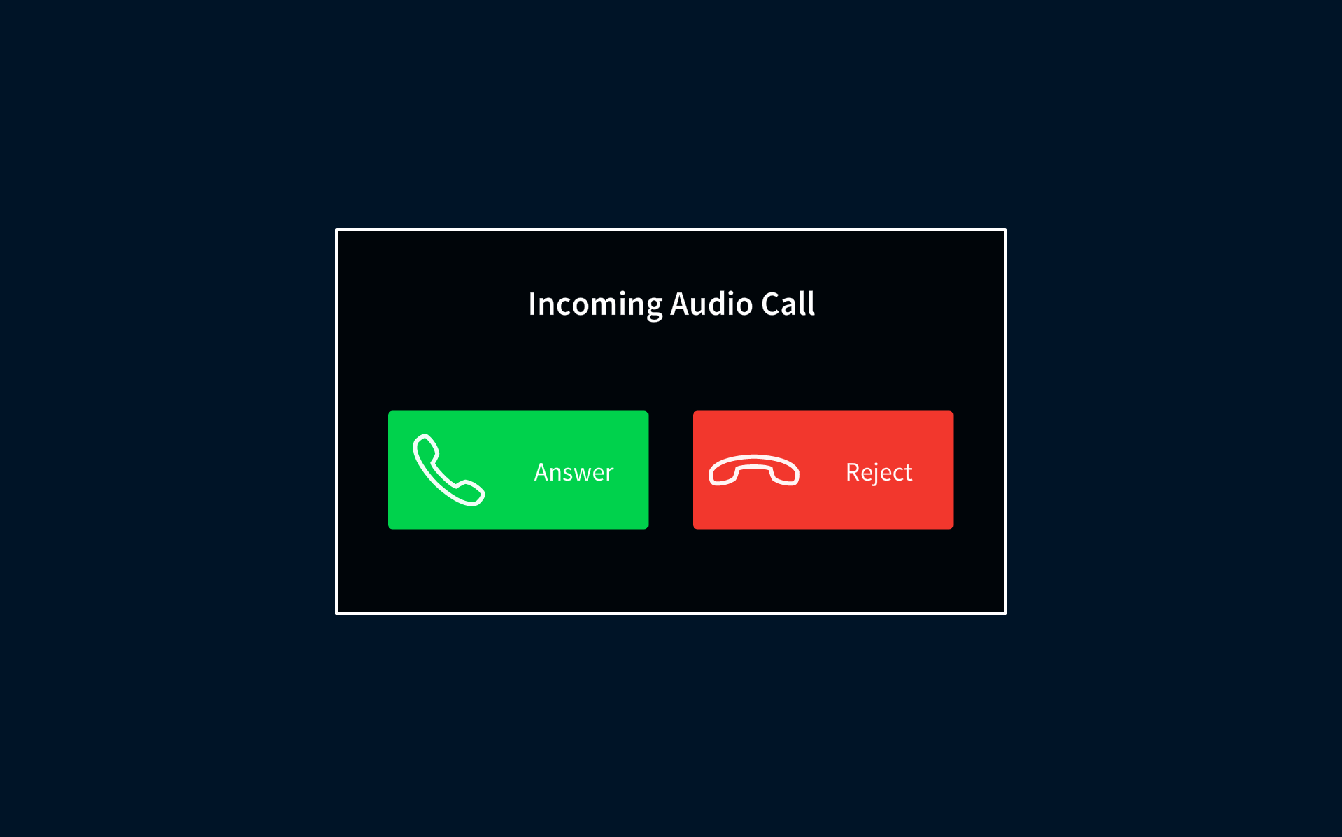
AnswerWhen there is an incoming call, press the green “Answer” button to accept the call.
2
RejectPress the red “Reject” button to decline the call.
Power Down
1
CancelAfter pressing the Power button, the system asks you to confirm. Press the red “Cancel” button to go back to your previous screen.
2
Power DownPress the green “Power Down” button to shut down the room.
Camera Settings
Camera Controls
1
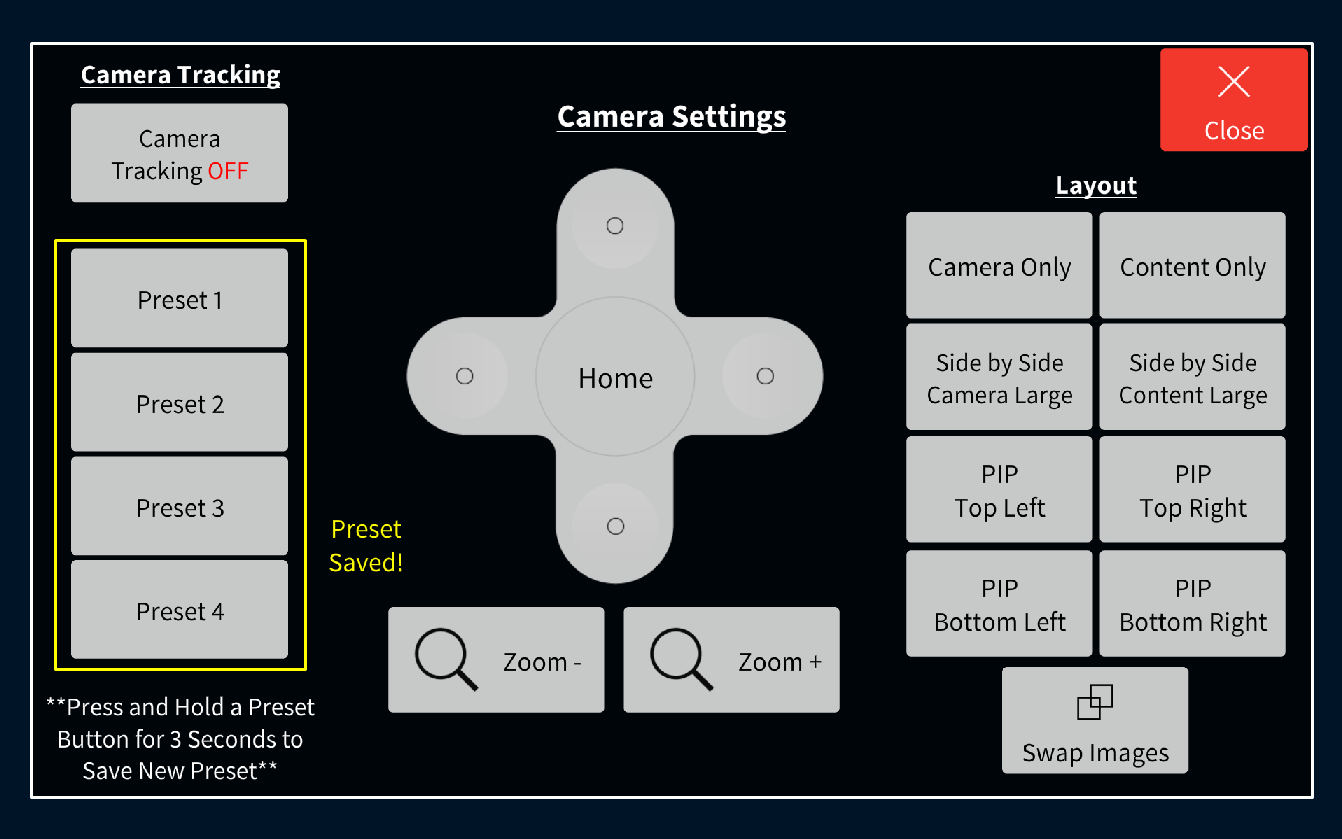
D-PadUse the D-Pad to move the camera left, right, up, and down.
2
ZoomZoom In and Zoom Out adjust the camera zoom level.
3
Home PositionThe Home button recalls a standard camera position every time the camera powers on.
4
PresetsFour presets are available — position the camera where you want it, then press and hold a preset button to save. Tap once to recall a saved preset.
5
Camera TrackingCamera Tracking enables smart tracking built into the camera. No manual controls are available when tracking is active.
6
LayoutThe Layout button adjusts the camera and content video feed going to the conferencing PC with eight layout options.
7
Swap Images“Swap Images” switches both video inputs from the current layout.
Display Settings
Display Controls
1
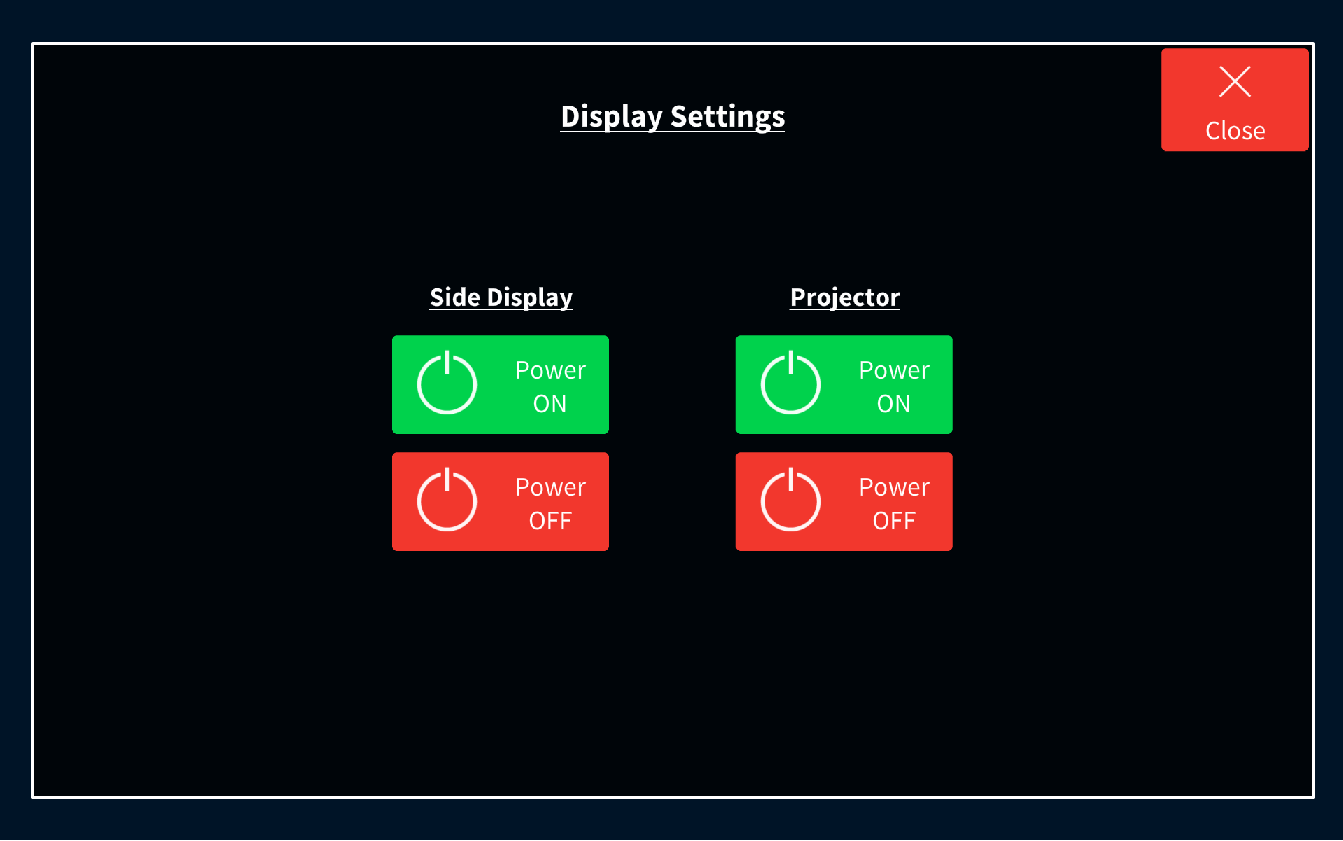
Power DisplaysManually power displays on and off using the associated buttons.
Video routing controls display power automation by default — these buttons are manual overrides only.