Conductor Digital Instructions

14th Floor

JT022530

MRC – 14th Fl – Enhanced Teams Room System Guide

Start Page

Tap anywhere on the touchscreen to initialize the system.

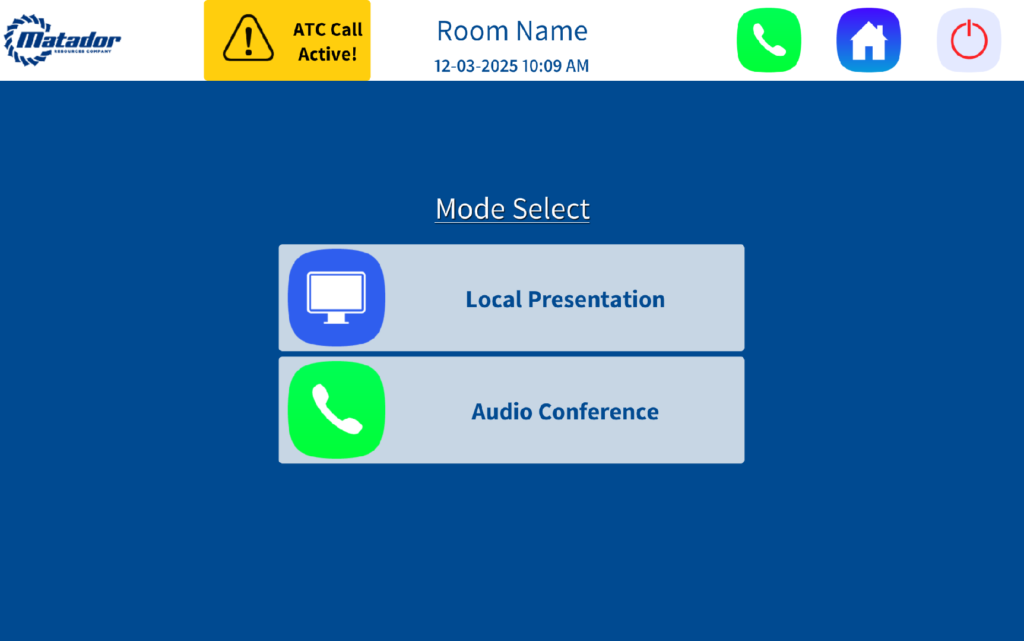
Mode Selection

  • Local Presentation: Enables display functionality for in-room presentations.
  • Audio Conference: Activates audio-only mode for VoIP calls without display usage.

Main Interface

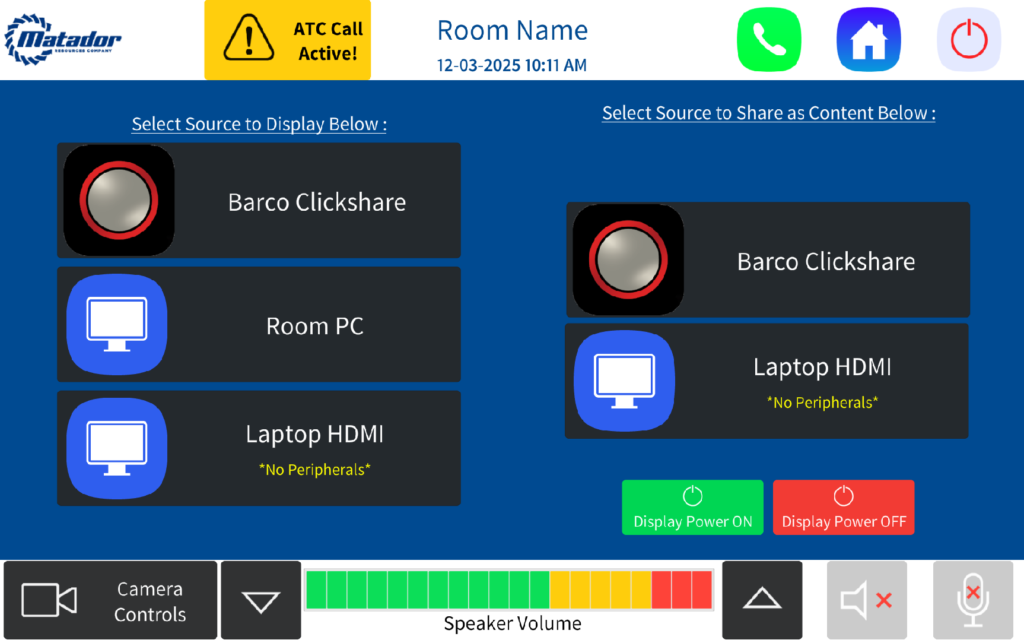
Top Navigation Bar

  • Logo (Top Left): Press and hold to access hidden Admin Settings.
  • ATC Call Active Indicator: Displays only when an active VoIP call is in progress.
  • Phone Icon: Initiates calls via Matador VoIP system.
  • Home Icon: Returns to Mode Selection screen.
    •  

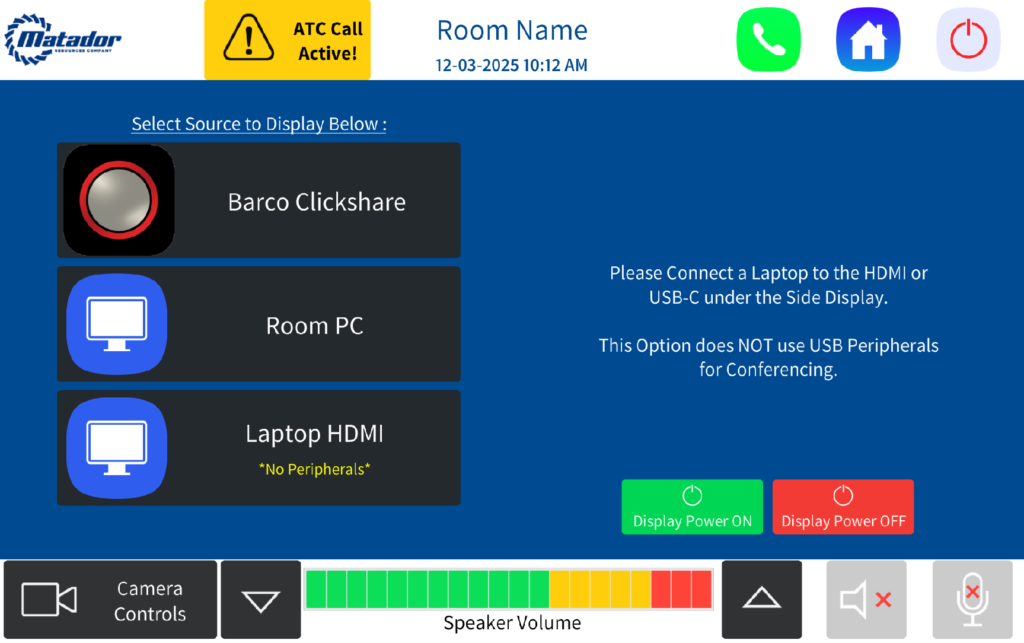
Bottom Navigation Bar

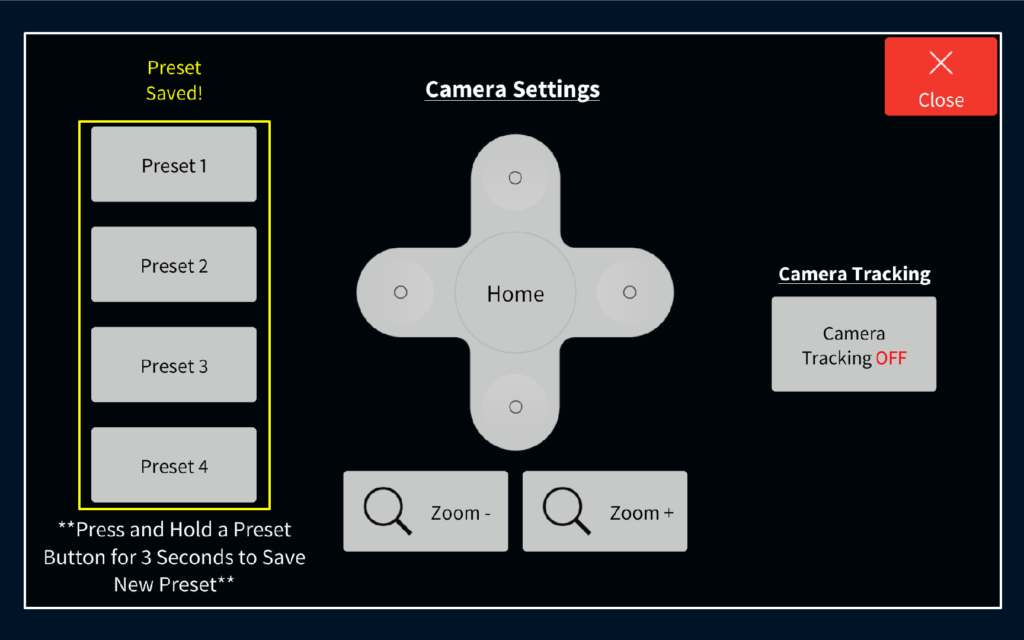
  • Camera Controls: Opens camera control panel. See below graphic for text illustration:
    • D-Pad for pan/tilt (left/right/up/down).
    • Zoom in/out functionality.
    • Home button to reset camera position.
    • Auto-Tracking Toggle to enable/disable tracking


Bottom Navigation Bar

  • Camera Controls: Opens camera control panel with:
    • D-Pad for pan/tilt (left/right/up/down).
    • Zoom in/out functionality.
    • Home button to reset camera position.
    • Auto-Tracking Toggle to enable/disable tracking.
  • Volume Control: Adjusts in-room audio output.
  • Speaker Mute: Toggles room audio ON/OFF.
  • Microphone Mute: Toggles ceiling mic audio ON/OFF.
    • LED Indicators:
      • RED = Muted
      • GREEN = Active

Content Source Selection

  • Barco ClickShare: Wireless presentation option. Connection instructions displayed upon selection.
  • Room PC: Shares local content via in-room PC. This is the default source upon startup.
    • After selecting, configure PC settings to use the chosen input as the camera source.
    • Note: Most conferencing codecs do not support dual camera sources simultaneously. Native app sharing is recommended.
  • Laptop HDMI (wall plate): Provides wired content sharing only.
    • USB peripherals are not supported in this mode.

Shutdown Confirmation

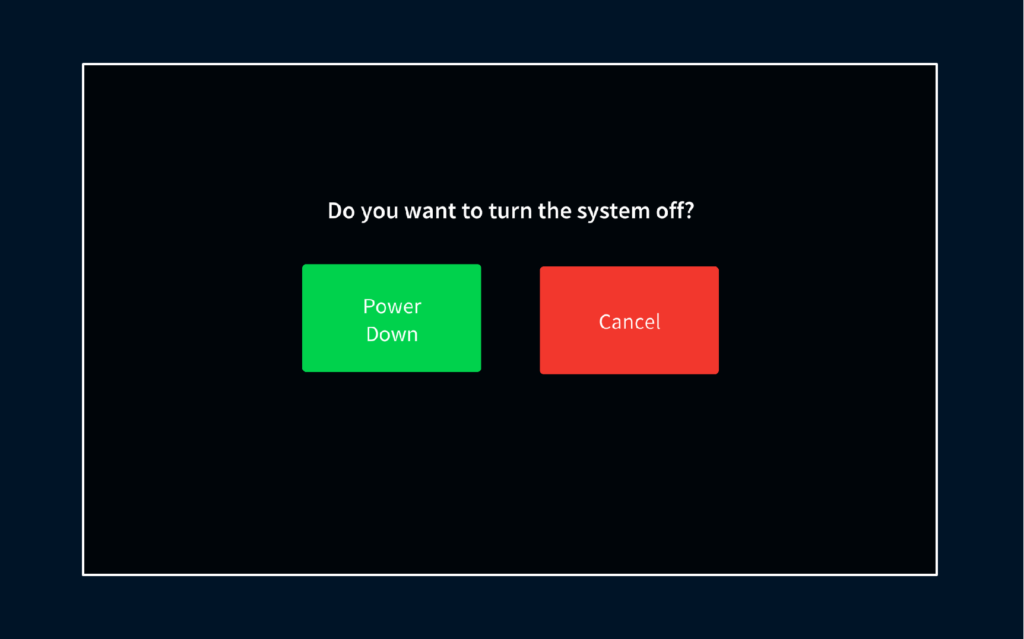
  • Selecting Yes powers down the system and terminates any active ATC calls.
  • Selecting No cancels the shutdown and returns to the previous screen.

Need Further Help?
Contact Us!