 AV User Guide
Conference Room 1
What would you like to do?
Join a Scheduled Meeting
- Find your meeting in the Scheduled list on the touch panel.
- Tap the green Join button next to your meeting.
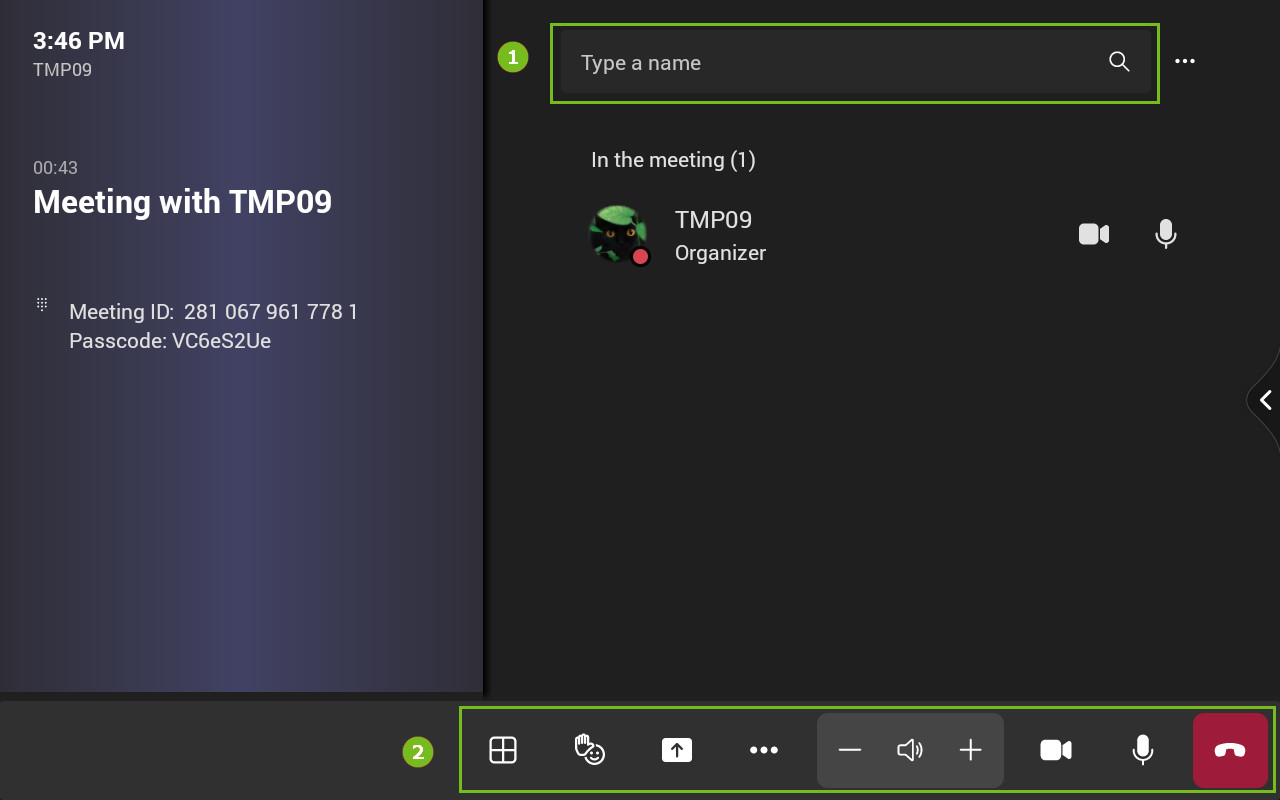
- You're in. Use the toolbar to mute, change layout, or adjust volume.
Start an Instant Meeting
- On the touch panel home screen, tap Meet Now.
- Once the meeting starts, tap Invite on the toolbar to search and add participants.
Make a Phone Call
- For Teams calls, tap Call on the touch panel and use the dial pad.
- For standard phone calls, use the CP965 desk phone on the table.
Heads up: The CP965 desk phone is a standalone unit — it is not synchronized with the meeting audio.
Open the Whiteboard
- On the touch panel home screen, tap Whiteboard.
- Use the on-screen tools to draw, write, and collaborate.
Whiteboard, Facilitator, and Call availability depends on your organization's Microsoft 365 licensing. If you don't see a button, contact IT.
Cable Connections
Touch Panel Reference
Home Screen — All Buttons Explained
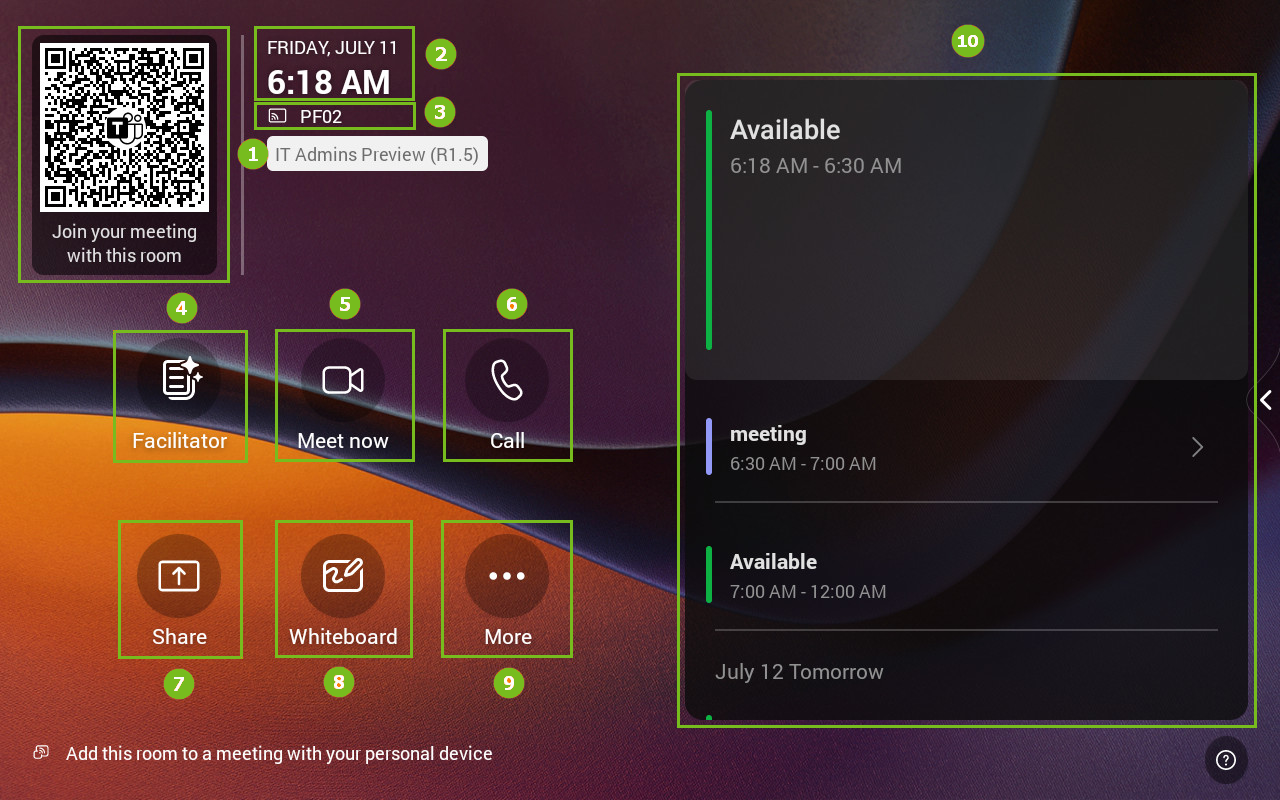
The availability of features such as Facilitator, Whiteboard, and Call depends on your organization's Microsoft ecosystem configuration and licensing. The interface in the room may differ from the images above based on these enabled features.
In-Meeting Toolbar
Conference Room 3
Conference Room 3 has the exact same hardware and interface as Room 1. The instructions are identical.
General Information
Room Automation
Occupancy Sensing
Displays power on automatically when you enter the room and shut down after 15 minutes of inactivity.
Independent Audio
Meeting audio is handled exclusively by the A30 Video Bar. The CP965 tabletop phone is a standalone unit for standard calls and is not synchronized with the meeting audio.