Equine 707-708
Touch anywhere on the touch panel. The display and the room sound turn on.
Tap what you want on the display: PC, BYOD, Mersive or Blank.
Done? Tap Power Off and confirm. Please do this when you leave.
What do you need to do?
Tap one. We'll take you right to it.
Show Something
PC, laptop, Mersive, Blank
Sound and Mics
Volume, mute, microphones
Camera
Aim, zoom, presets
On and Off
Start up and shut down
Crestron TSW-1070 touch panel
Runs the whole room: turn it on, pick what to show, sound, microphones, camera and Power Off.
Display
Shows the source you pick on the touch panel.
Room computer
The room's installed computer. Tap PC to show it.
HDMI cable at the podium
Connects your own laptop. Tap BYOD to show it.
Mersive Solstice
Share from your device without a cable. Tap Mersive to show it.
Camera
Aim and zoom it from the touch panel, and save two positions as presets.
Ceiling microphones
Pick up voices in the room. Mute or unmute them with Ceiling Mic.
Wireless microphones
Mute or unmute them with Wireless Mic. Keep the batteries charged.
The Touch Panel
Three screens, and the buttons on them
- Start Page · shows when the room is off or idle. Touch anywhere to turn the room on.
- Main Page · shows when the room is on. Pick what to show, change the volume, mute the microphones, open the camera controls or power off.
- Camera Controls · opens when you tap Camera. Aim and zoom the camera and use the presets.
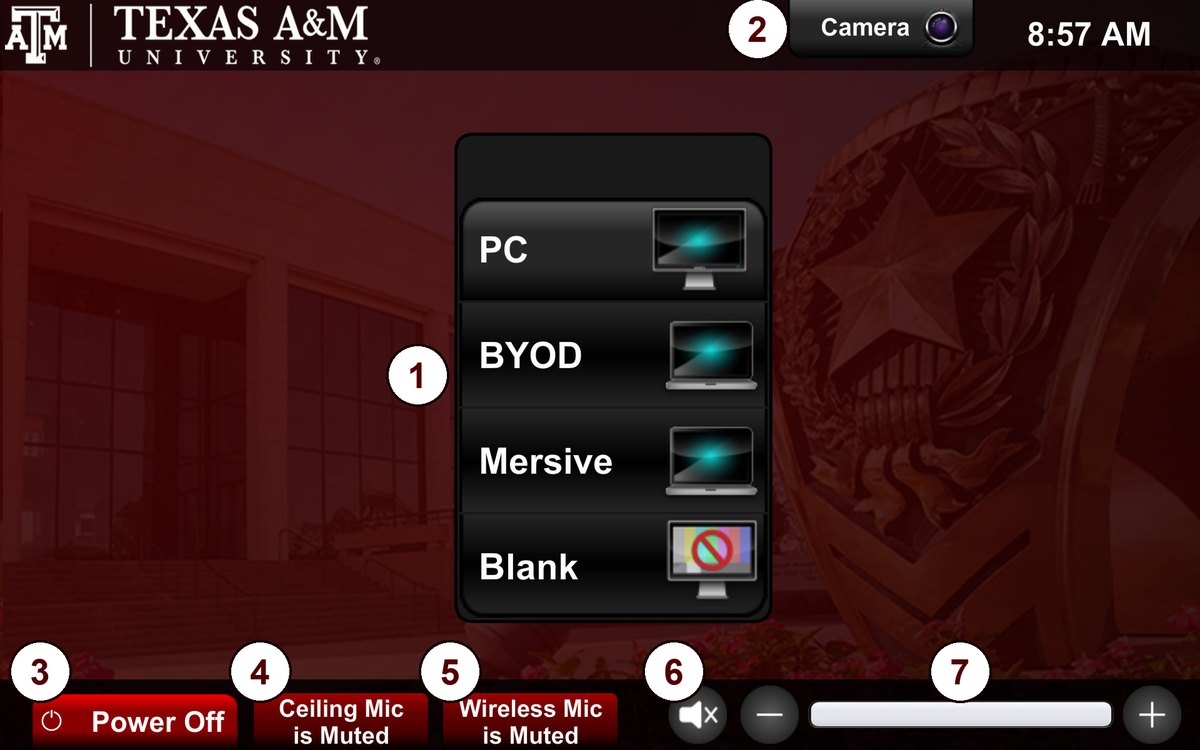
PC, BYOD, Mersive or Blank · pick what shows on the display.
Camera · opens the camera controls.
Power Off · shuts the room down.
Ceiling Mic · mutes or unmutes the ceiling microphones.
Wireless Mic · mutes or unmutes the wireless microphones.
Speaker icon · mutes or unmutes the room sound.
− and + · lower or raise the volume. The bar between them shows the level.
Turn the Room On
From the Start Page
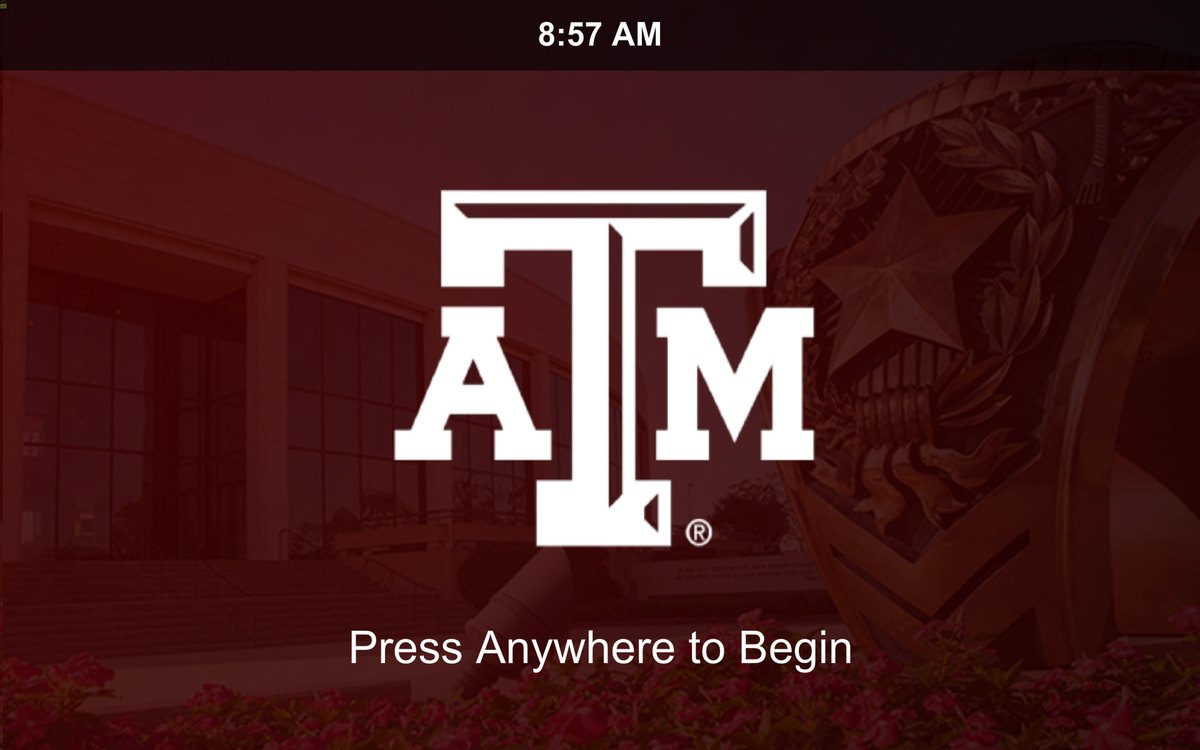
Touch anywhere on the Start Page (the Texas A&M logo with Press Anywhere to Begin).
The Main Page opens, and the display and sound system turn on.
Give the display a moment to warm up before you expect a picture.
Pick what to show: PC, BYOD, Mersive or Blank.
Shut the Room Down
Power Off, bottom left

Tap Power Off in the bottom left corner of the Main Page.
A shutdown confirmation page opens. Confirm that you want to shut down.
The display and sound turn off, and the touch panel goes back to the Start Page.
Please power the room off when you leave, so it is ready for the next person.
Pick What Shows on the Display
Four buttons in the middle of the Main Page
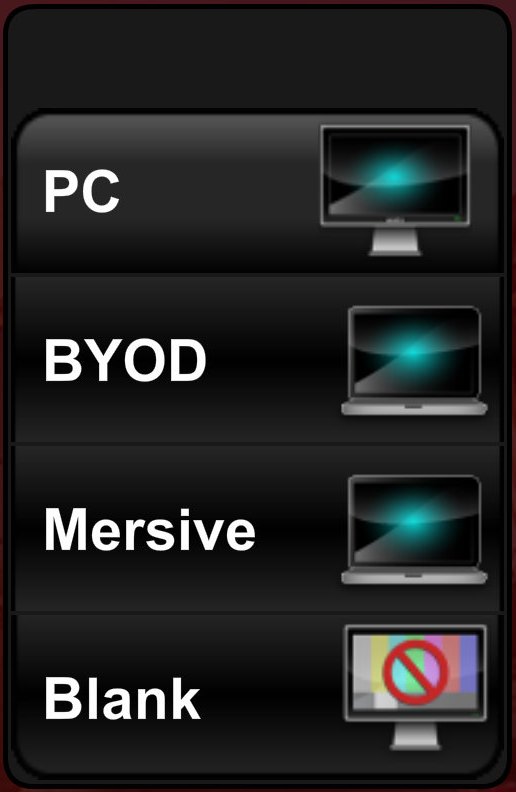
- PC · the room's installed computer.
- BYOD · your own laptop, connected with the HDMI cable at the podium.
- Mersive · a device sharing wirelessly through Mersive Solstice.
- Blank · nothing. The display goes blank, but the room stays on.
To switch, tap a different button at any time.
Show the Room Computer
PC
Touch the Start Page first if the room is off.
Tap PC on the Main Page. The room computer shows on the display.
Show Your Laptop
BYOD, with the HDMI cable at the podium
Plug the HDMI cable at the podium into your laptop.
Tap BYOD on the Main Page. Your laptop shows on the display.
No picture? Check the HDMI cable at the podium, then set your laptop to duplicate or extend its display. On Windows, press the Windows key + P. On a Mac, open System Settings, then Displays.
No sound from your laptop? Turn up your laptop's own volume as well as the room volume.
Share Wirelessly with Mersive
Mersive Solstice, no cable
Tap Mersive on the Main Page.
Make sure your device is on the same network as the room display.
Connect with Mersive Solstice, using the room name and key shown on the screen.
Blank the Display
Picture off, room stays on
Want the audience's attention back on you? Blank the display without turning the room off.
Tap Blank. The display goes blank.
To bring the picture back, tap a source again: PC, BYOD or Mersive.
Change the Volume
Bottom right of the Main Page

Tap + to turn the volume up.
Tap − to turn it down.
The bar between them shows the current level.
Still too quiet? Make sure the computer's or laptop's own volume is up too.
Mute the Room Sound
Speaker icon, bottom right
Tap the speaker icon next to − to mute the room sound.
Tap it again to unmute.
Mute or Unmute the Microphones
Ceiling Mic and Wireless Mic
- Ceiling Mic mutes or unmutes the ceiling microphones.
- Wireless Mic mutes or unmutes the wireless microphones.
Each button shows its current state.
When a button reads is Muted, that microphone is off. Tap it to unmute before you speak or join a call.
Open and Close the Camera Controls
Camera, top of the Main Page
Tap Camera at the top of the Main Page. The camera controls open.
When you are done, tap the X in the top right corner to close them.
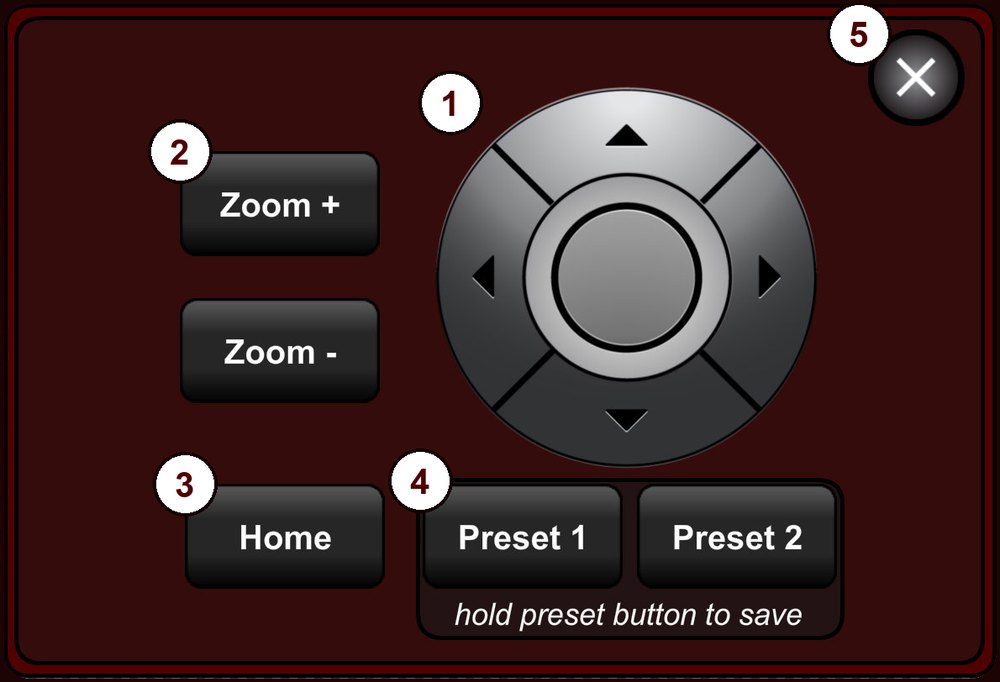
Arrow pad · press and hold to tilt (up, down) or pan (left, right). Let go to stop.
Zoom + / Zoom - · press and hold to zoom in or out.
Home · sends the camera back to its default position.
Preset 1 / Preset 2 · tap to go to a saved position. Press and hold to save one.
X · closes the camera controls.
Aim the Camera
Arrow pad
Tap Camera to open the camera controls.
Press and hold an arrow to tilt the camera up or down, or pan it left or right.
Let go to stop.
Zoom In or Out
Zoom + and Zoom -
Press and hold Zoom + to zoom in.
Press and hold Zoom - to zoom out.
Reset the Camera
The Home button
Tap Home to send the camera back to its default position.
Camera Presets 1 and 2
Saved camera positions
Go to a saved position
Tap Preset 1 or Preset 2. The camera moves to that saved position.
Save a position
Aim and zoom the camera to the shot you want.
Press and hold Preset 1 or Preset 2 until it saves. The panel reminds you: hold preset button to save.
Tap that preset later to return to the same shot.
Saving over a preset replaces the old position for everyone who uses the room.
No picture on the display.
Check that the right source is picked and Blank is not on. Using BYOD? Check the HDMI cable at the podium and set your laptop to duplicate or extend its display.
No sound from the room speakers.
Check that the speaker icon isn't muted, and turn the volume up with +. Make sure the computer's or laptop's own volume is up.
People on the call or the recording can't hear you.
Check that Ceiling Mic and Wireless Mic don't read is Muted. Make sure the wireless mic batteries are charged and the mic is switched on.
Can't connect with Mersive.
Make sure your device is on the same network as the room display, and use the room name and key shown on the screen.
The camera doesn't move.
Close the camera controls and open them again, then tap Home.
Technical problem, or need help setting up an important meeting? Contact your local IT / Facilities Helpdesk, or call or email Taurus Technologies support.