Warehouse Training Room
Walk up to the Teams touch screen. It wakes up by itself.
Find your meeting on the right side and tap Join.
Presenting? Log into the Room PC at the podium, or plug your laptop into the podium HDMI or USB-C cable and tap Share.
What do you need to do?
Tap one. We'll take you right to it.
Join a Meeting
Calendar, ID, or QR code
Share My Screen
Room PC, laptop, wireless
Room & Mics
Projectors, cameras, mics
Troubleshooting
Fixes and support
Teams touch screen
The Crestron touch screen. Join meetings and run the room from here.
Warehouse Room PC
The room's own computer at the podium. It is the main thing shown on the screens.
Podium cable cubby
HDMI and USB-C cables for your laptop. If the Room PC is already being shared, plugging in switches to your laptop by itself.
Panasonic laser projectors (2)
Put the picture on the two big projection screens.
75" Sony display
The TV at the back of the room. It shows the same thing as the projectors.
Motorized projection screens (2)
Roll down from the ceiling for the projectors.
AVer cameras (2)
Room cameras that show the presenter and the audience to people online.
Wireless microphones
A handheld mic and a podium mic. Your voice comes out of the ceiling speakers, and people online can hear it too.
Podium monitor
The screen on the podium desk. It shows the Room PC so the presenter can log in and run it.
Ceiling speakers
Room sound for meetings, videos and the mics.
The Teams Touch Screen
Every button, explained
This is the home screen when no meeting is running. Your room name and meetings will look different from the example.
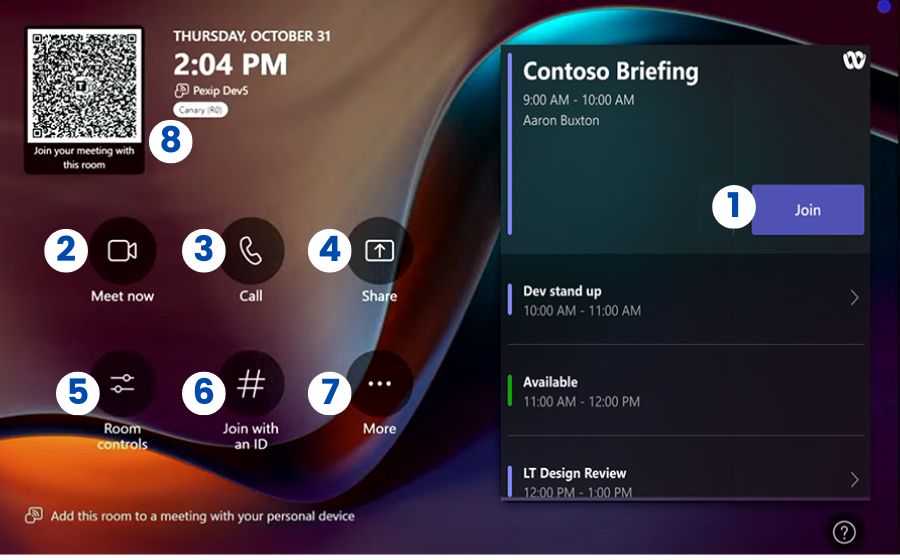
Join · join your meeting from the calendar.
Meet now · start a brand-new meeting right away.
Call · call someone in Teams.
Share · show the Room PC on the screens.
Room controls · the room's own controls for cameras, mics and screens.
Join with an ID · join with a Meeting ID and passcode.
More · settings and restart.
QR code · scan with your phone to join with this room.
Join a Scheduled Meeting
The easiest way. One tap.
Look at the right side of the touch screen. Meetings are listed by time.
Tap Join on your meeting.
Wait a few seconds. You are in.
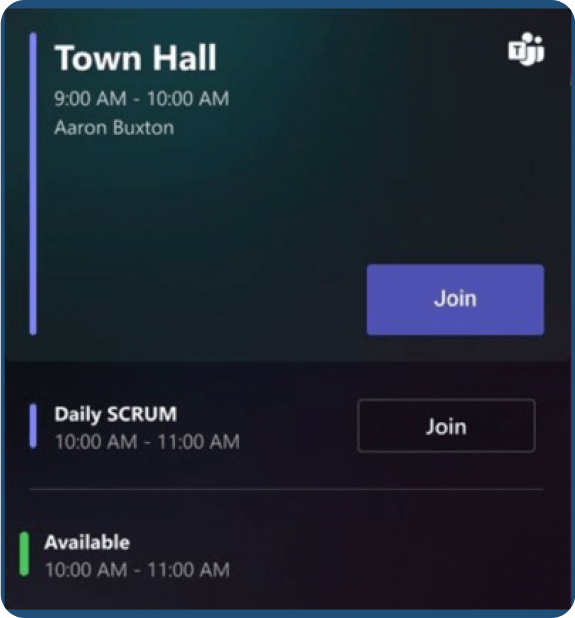
Don't see your meeting? It only shows up if this room was invited. Ask the organizer to add the room, or use Join with an ID.
Join with a Meeting ID
When the meeting is not on the calendar
Open the Teams invite on your phone or laptop. Find the Meeting ID and Passcode.
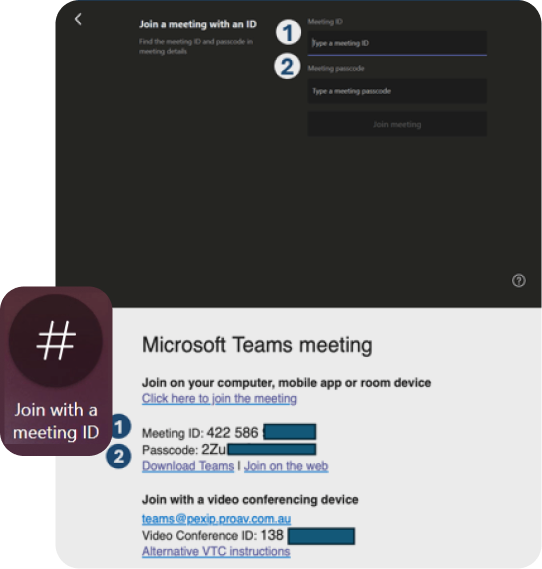
Tap Join with an ID.
Type the Meeting ID.
Type the Passcode.
Tap Join.
Start a Meeting Right Now
No invite needed
Tap Meet now. The meeting starts by itself.
To add people, type a name in the search box and tap the person.
Join from Your Phone (QR Code)
Scan the code
Open your phone camera.
Point it at the QR code on the touch screen or the TV.
Tap the link and pick your meeting. The room joins it for you.
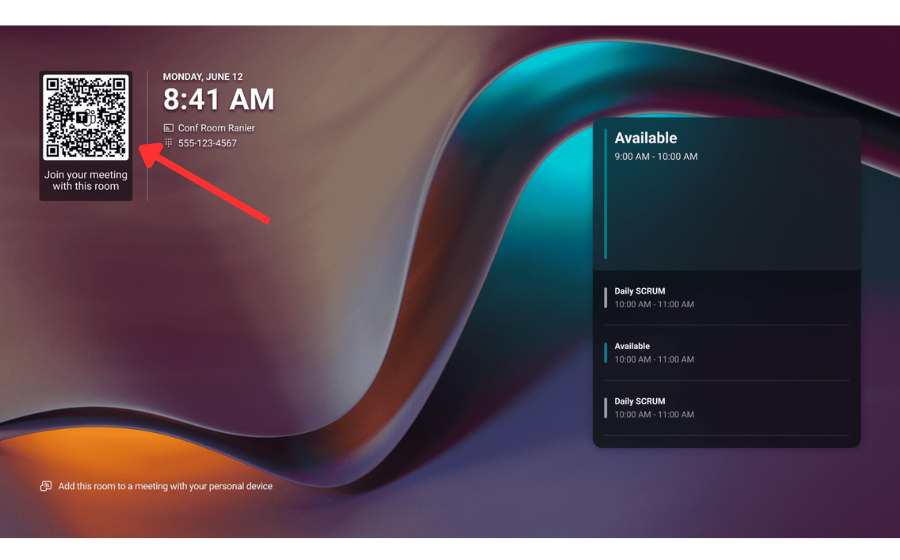
You need the Microsoft Teams app on your phone, signed in with your work account.
Also Joining on Your Laptop?
Do this or you will get echo
Click Join in Teams on your laptop.
Before joining, pick Room audio (or Don't use audio).
Click Join now.
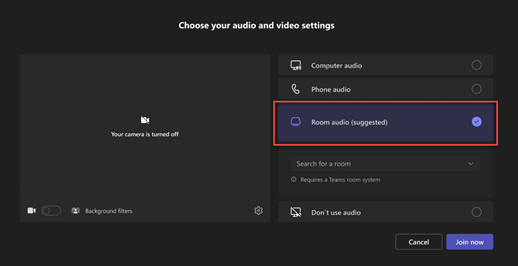
Already in with sound on? Mute your laptop mic and turn off your laptop speakers right away, or everyone hears an echo.
Zoom, Webex or Google Meet
Meetings from other companies
If your IT team turned this on, these meetings show a Join button on the calendar like a Teams meeting.
In these meetings the room can't send your laptop screen or move the cameras for the other side. Join the same meeting on your laptop with sound off and share from there.
Video switching at the podium is automatic. You never have to pick an input. Whatever is active at the podium shows on both projectors, the rear TV, and in the Teams meeting.
Present the Warehouse Room PC
The room's main computer
The Warehouse Room PC is always connected. Its desktop is always on the podium desk monitor.
Make sure no laptop is plugged into the podium cubby cables (HDMI or USB-C).
Log into the Room PC on the podium desk monitor.
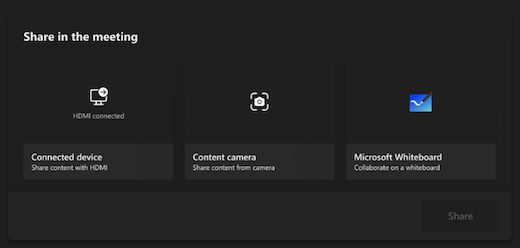
In a Teams meeting: tap Share on the touch screen. If a Share box pops up, tap Connected device, then Share. The Room PC shows on both projectors, the rear TV and in the meeting.
No meeting? Tap Share on the Teams home screen to show the Room PC in the room.
Showing a YouTube or other video with sound to people online? Sound from the podium cables and the Room PC doesn't go into the Teams call. Use Share Wirelessly Through the Teams Call below and turn on Include sound.
Present Your Laptop
Plug in, then tap Share if needed
Plug the HDMI or USB-C cable from the podium cable cubby into your laptop.
Already sharing the Room PC? Within 2 to 3 seconds the room switches to your laptop by itself: projectors, rear TV and the Teams meeting. No buttons needed.
Nothing shared yet? Plugging in does not start sharing on its own. Tap Share on the touch screen. If a Share box pops up, tap Connected device, then Share.
Done? Unplug the cable. The room goes back to the Room PC by itself.
Showing a YouTube or other video with sound to people online? Sound from the podium cables and the Room PC doesn't go into the Teams call. Use Share Wirelessly Through the Teams Call below and turn on Include sound.
Using USB-C? Your laptop needs a USB-C port that can send video. Look for a small D-shaped DisplayPort symbol or the Thunderbolt symbol (a lightning bolt with an arrow) next to the port.
Streaming movies (like Netflix) may show as a black box because they are copy-protected. That is normal.
Stop Sharing and See the Meeting Again
Back to the people on the call
Tap Stop sharing on the touch screen.
The projectors and rear TV go right back to the Teams meeting: the people on the call and the camera views.
Share Wirelessly Through the Teams Call
No cable. The best way to share.
The easiest way to show your laptop. No cable needed: you share right from the Teams meeting on your laptop, and it shows on the projectors and rear TV and to everyone in the call.
Start or join the meeting on the Teams touch screen first (tap Join).
Join the same meeting from Teams on your laptop.
Before you join, pick Room audio, or Don't use audio if the room isn't listed. This keeps your laptop's mic and speakers off so there's no echo.
Click Join now.
In the meeting on your laptop, click Share.
Playing a video or anything with sound? Turn on the Include sound toggle.
Pick your screen or a window. It shows up on the projectors and rear TV and in the call.
To stop, click Stop sharing on your laptop.
Forgot the sound? While you're sharing, point at You're sharing your screen at the top of the screen you are sharing and select Share audio. People hear the video only when this is on.
Sharing a video? Select Optimize in the sharing toolbar so it plays smoothly.
On a Mac, the first time you share sound Teams may ask to install its audio driver and restart. If it asks for a password you don't have, call support.
The Screen Shows the Wrong Thing
Make it show what is on your laptop
Windows laptop
Hold the Windows key and press P.
Choose Duplicate.
Mac laptop
Open System Settings, then Displays.
Click the room screen and set Use as to the Mirror for Built-in… option.
Share Without a Cable (Cast)
From the Teams app
In Teams on your laptop, click Settings and more (…) next to your picture, then Cast.
Pick this room, click Next, then Just cast.
Pick what to show and click Cast.
On your phone: open Teams, tap Cast (or More, then Cast), pick this room and tap Project my screen. On an iPhone, also pick Microsoft Teams and tap Start Broadcast. To stop, tap the small pill icon at the top of your phone, then Stop.
Bluetooth must be on. If the room is not in the list, use the cable.
Room Controls
Cameras, mics and screens
The room's own control page lives inside the Teams touch screen. Use it to adjust the cameras, mics or screens.
Tap Room controls on the touch screen.
Adjust the cameras, mics or screens with the buttons on that page.
When you're done, tap the red Exit Room Controls button at the bottom-left of the screen. You're back to the normal Teams controls.
You don't need Room controls to switch between the Room PC and your laptop. The podium switches by itself when you plug in or unplug while sharing.
Please don't use the projector or TV remotes, or the buttons on the projectors. The room controls keep everything in sync.
Projectors and Screens
Good to know
- Give the room up to a minute to turn everything on. The projectors are laser projectors, so they light up fast, but the screens take a moment to roll down.
- The motorized screens need rest. Don't run them up and down over and over. If a screen stops moving, it is cooling down. Wait 15 minutes and try again.
- A projector with its light on but no picture may just have its picture muted. Use the room controls, not the projector.
- There is no need to wait for the projectors to cool down before leaving.
The Two Cameras
What people online see
This room has two AVer cameras so people online can see both the presenter and the room.
Change the camera view
Tap Room controls on the touch screen.
Adjust the cameras with the buttons on that page.
Tap the red Exit Room Controls button at the bottom-left to go back to the Teams controls.
To turn the camera off or on for the meeting, tap Camera in the Teams meeting controls.
Please don't use a camera remote or save over camera presets. They are set up for this room.
Wireless and Podium Microphones
So everyone can hear you
Turn the handheld mic on with its on/off switch. A green light means it's on.
Hold it by the handle, about a hand's width from your mouth. Don't cover the round top.
At the podium, talk toward the podium mic from about 6 to 12 inches away.
Turn the handheld off when you're done and put it back on its charger (if there is one).
A red light on the mic means the battery is low. Swap mics or charge it.
Squealing sound? Don't stand under a ceiling speaker with the mic, hold the mic closer to your mouth, and turn off mics nobody is using.
Muting the Teams meeting with Mic stops people online from hearing the room. People in the room may still hear the mics through the speakers.
To adjust the mics, tap Room controls, make your change, then tap the red Exit Room Controls button.
The Podium Monitor
For the presenter
The monitor on the podium desk always shows the Warehouse Room PC, so the presenter can log in and run it while facing the room.
Meeting Buttons on the Touch Screen
What each one does
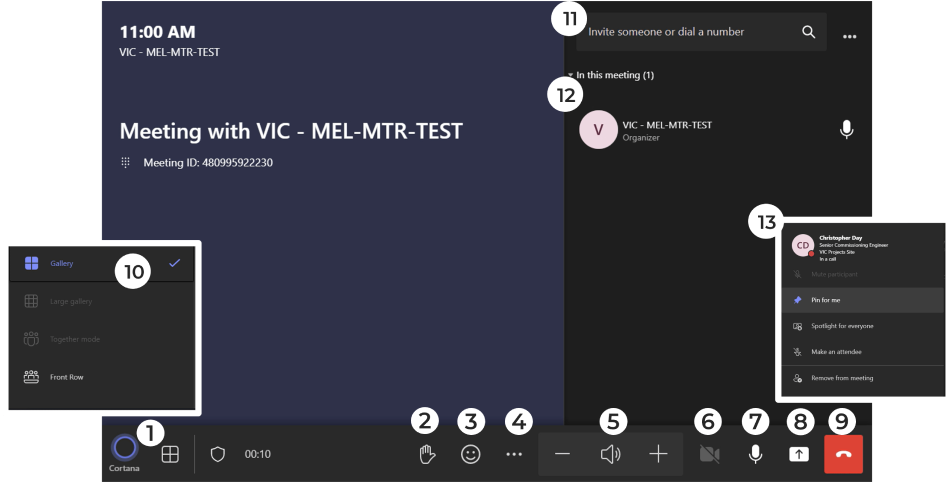
View · change the layout on the screens.
Raise hand.
React · send a thumbs up or other reaction.
More actions · live captions and more.
Volume · minus and plus change the sound.
Camera · camera on or off. The small arrow opens camera settings.
Mic · mute or unmute the room.
Share · show the podium computer (the Room PC, or your laptop if it is plugged in).
Leave · the red button. Hang up.
Layouts · Gallery, Large gallery or Front row.
Invite someone · type a name to call them in.
People in the meeting.
Options for a person · tap a name to pin or remove them.
The buttons on your screen may look newer than this picture.
The touch screen is dark.
Walk up to it or tap it. If it stays black for a few minutes, it may be updating. It comes back on its own.
The projectors or screens didn't come on.
Open Room controls and turn them on there. Give it up to a minute.
A screen won't move.
It may be cooling down. Don't keep pressing. Wait 15 minutes and try again, and let support know.
A YouTube or other video plays but people online can't hear it.
Share from the Teams call on your laptop and turn on Include sound before you pick your screen. Already sharing? Point at You're sharing your screen at the top of the screen you are sharing and select Share audio.
My laptop isn't showing.
Check the HDMI or USB-C cable from the podium cubby is pushed all the way in and give it 2 to 3 seconds. If nothing was being shared yet, tap Share on the touch screen. Press Windows + P and choose Duplicate. Sharing from the Teams call instead? Make sure you clicked Share on your laptop and picked a screen.
The Room PC isn't showing.
Unplug any laptop from the podium cables first. Then tap Share on the touch screen.
The screens show the shared content, but I want to see the people on the call.
Tap Stop sharing on the touch screen.
The touch screen is stuck on the room control page.
Tap the red Exit Room Controls button at the bottom-left.
People online can't hear the room.
Check Mic on the touch screen isn't muted. Make sure the wireless mic is on (green light) and close to your mouth.
We can't hear people online.
Tap + on the touch screen.
Squealing or echo.
Move away from the ceiling speakers with the mic. Laptops in the meeting must have their mic and speakers off.
People online can't see the presenter.
Check that Camera is on in the meeting controls. Then open Room controls to adjust the cameras, and tap Exit Room Controls when you're done.
A message says the room may not work right.
Something in the room needs IT. Use another room if you can, and let support know.
Restart the Teams System
When the touch screen is frozen
Leave the meeting.
Tap More on the home screen.
Tap Restart Device. Wait a few minutes for it to come back.
Don't open Settings (it needs an IT password) and don't unplug any equipment. If restarting doesn't fix it, call support.