Executive Boardroom
Walk up to the Neat Pad on the table. It wakes up by itself.
Find your meeting on the right side of the Pad and tap Join.
To show your laptop, share from the Teams call on your laptop. No cable needed. Or plug in the USB-C or HDMI cable at the table.
What do you need to do?
Tap one. We'll take you right to it.
Join a Meeting
Calendar, ID, or QR code
Share My Screen
Wireless or cable
In a Meeting
Mute, volume, camera, leave
Troubleshooting
Fixes and support
100" Planar display
The big screen. It shows the meeting and anything you share.
Neat Bar Pro
The bar under the screen. It is the camera, microphones and speakers for the meeting.
Neat Pad
The touch screen on the table. You control everything from here.
Neat Center (2)
Two small round cameras on the table. They show people's faces from the middle of the table. They work on their own.
USB-C and HDMI cables
Table cables for your laptop. Plug in one to show your screen.
The Neat Pad Home Screen
Every button, explained
This is what the Neat Pad looks like when no meeting is running. Your room name and meetings will be different from the example.
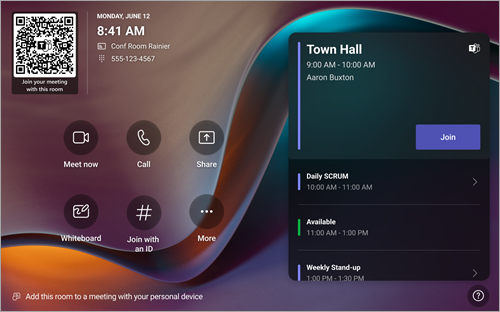
- QR code · scan it with your phone camera to join your meeting with this room.
- Meet now · start a brand-new meeting right away.
- Call · call someone in Teams.
- Share · show your laptop on the screen.
- Join with an ID · join a meeting that is not on the calendar, using its Meeting ID and passcode.
- More · settings. You will not need this for normal meetings.
- Calendar (right side) · meetings booked in this room. Tap Join on yours.
You may also see a Whiteboard button. It only works on a touch screen, so you can ignore it in this room.
Join a Scheduled Meeting
The easiest way. One tap.
Look at the right side of the Neat Pad. Meetings are listed by time.
Find your meeting and tap Join.
Wait a few seconds. The meeting opens on the big screen and you are in.
Don't see your meeting? It only shows up if this room was invited. Ask the organizer to add the room to the invite, or use Join with an ID below.
Join with a Meeting ID
When the meeting is not on the calendar
Every Teams invite has a Meeting ID and a Passcode. Open the invite on your phone or laptop to find them.
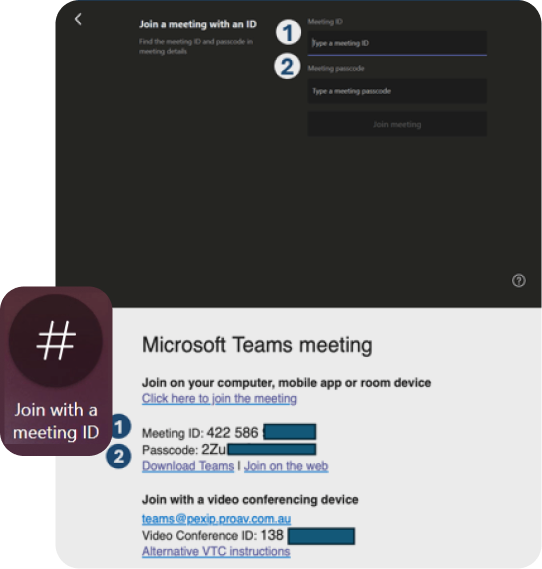
On the Pad, tap Join with an ID.
Type the Meeting ID.
Type the Passcode.
Tap Join.
Illustration. Type the ID, then the passcode, then tap Join.
Start a Meeting Right Now
No invite needed
Tap Meet now on the Pad. The meeting starts by itself.
To add people, tap the box that says Type a name and type their name.
Tap their name. Teams calls them into the meeting.
Join from Your Phone (QR Code)
Scan the code on the screen
Open the camera on your phone.
Point it at the QR code on the Neat Pad or on the big screen.
Tap the link that pops up. Your phone opens Teams.
Pick your meeting. The room joins it for you.
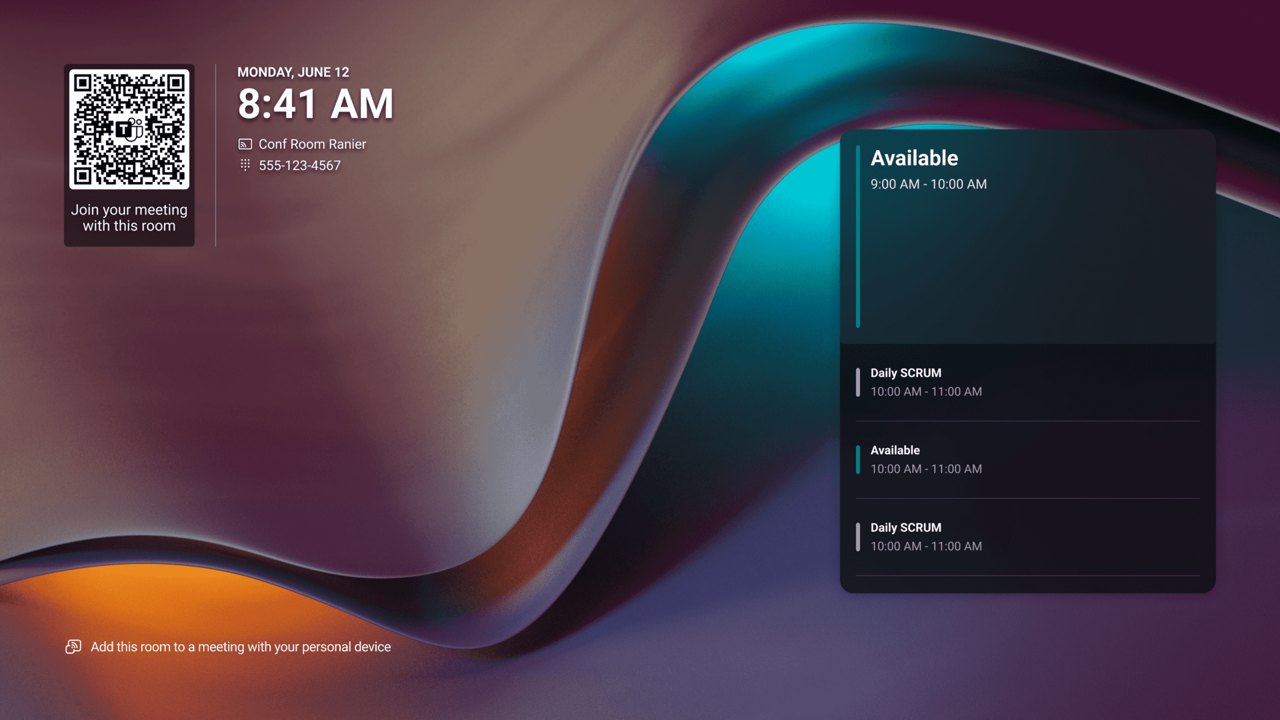
Your phone needs the Microsoft Teams app and your work sign-in. The code changes every minute, so scan the one on the screen right now.
Call Someone
Teams calls
Tap Call.
Type a name and tap the person.
Calling a regular phone number only works if your IT team turned on phone calling for this room. To join a Teams meeting, use Join with an ID, not a phone number.
Also Joining on Your Laptop?
Do this or you will get echo
It is fine to also join the meeting on your laptop, for example to share your screen or see the chat. But your laptop sound must be off, or everyone will hear a loud echo.
Click Join in Teams on your laptop.
On the screen that opens before you join, pick Room audio. Teams may show it as the suggested choice.
If Room audio can't find this room, pick Don't use audio instead.
Click Join now.
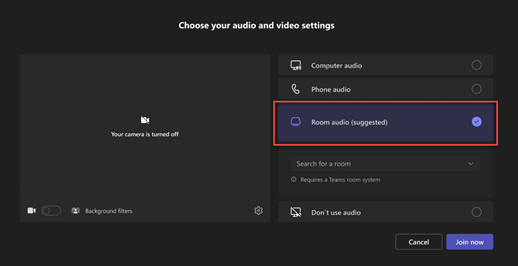
Already in the meeting with sound on? Mute your laptop mic and turn your laptop speakers off right away.
Zoom, Webex or Google Meet
Meetings from other companies
If your IT team turned this on, a Zoom, Webex or Google Meet meeting in the room calendar shows a Join button like a Teams meeting. Tap it to join.
For Zoom or Google Meet you can also tap Join with an ID and pick the meeting type.
Important: in these meetings the table cable can't share your screen to the other side. To share, join the same meeting on your laptop with your laptop sound off, and share from there.
Share Wirelessly Through the Teams Call
No cable. The best way to share.
The easiest way to show your laptop. No cable needed: you share right from the Teams meeting on your laptop, and it shows on the big screen and to everyone in the call.
Start or join the meeting on the Neat Pad first (tap Join).
Join the same meeting from Teams on your laptop.
Before you join, pick Room audio, or Don't use audio if the room isn't listed. This keeps your laptop's mic and speakers off so there's no echo.
Click Join now.
In the meeting on your laptop, click Share.
Playing a video or anything with sound? Turn on the Include sound toggle.
Pick your screen or a window. It shows up on the big screen and in the call.
To stop, click Stop sharing on your laptop.
Forgot the sound? While you're sharing, point at You're sharing your screen at the top of the screen you are sharing and select Share audio. People hear the video only when this is on.
Sharing a video? Select Optimize in the sharing toolbar so it plays smoothly.
On a Mac, the first time you share sound Teams may ask to install its audio driver and restart. If it asks for a password you don't have, call support.
Share with the Table Cable
Plug in and it shows up
Plug the USB-C cable or HDMI cable at the table into your laptop.
Wait a few seconds. Your laptop screen shows up on the big screen.
In a meeting, everyone in the meeting sees it too.
If nothing shows up, tap Share on the Pad, then tap Connected device.
Share content
Illustration of the Share screen. Tap Connected device.
Playing a video with sound for people in the call? The most reliable way is Share Wirelessly Through the Teams Call above, with Include sound turned on. If you use the cable, make sure Share system audio is on in the Pad's Share screen.
One laptop at a time. Use the USB-C cable or the HDMI cable. If two laptops are plugged in, unplug the one you are not using.
Your laptop needs a USB-C port that can send video. Most newer laptops can. Look for a small D-shaped DisplayPort symbol or the Thunderbolt symbol (a lightning bolt with an arrow) next to the port.
Movies from streaming services (like Netflix) may show as a black box. They are copy-protected and can't be shared. That is normal.
Stop Sharing
Two easy ways
Sharing from the Teams call on your laptop? Click Stop sharing on your laptop.
Using the cable? Tap Stop sharing on the Pad, or just unplug the cable.
The Screen Shows the Wrong Thing
Make it show what is on your laptop
Windows laptop
Hold the Windows key and press P.
Choose Duplicate.
Mac laptop
Open System Settings and click Displays.
Click the big screen, then set Use as to the Mirror for Built-in… option.
Share Without a Cable (Cast)
From the Teams app
From Teams on your laptop
Open Teams. Click the Settings and more (…) menu next to your picture, then Cast.
Pick this room and click Next.
Choose Just cast.
Pick what to show and click Cast.
To stop, click End meeting on your laptop.
From Teams on your phone
In the Teams app, tap Cast. If you don't see it, tap More first.
Pick this room, then tap Project my screen.
On an iPhone, also pick Microsoft Teams, then tap Start Broadcast.
To stop, tap the small pill icon at the top of your phone, then Stop.
Bluetooth must be on and you need to be in the room. If the room is not in the list, use the table cable instead.
The Buttons During a Meeting
What each one does
Illustration. The buttons are icons along the bottom of the Pad. Their order may look a little different.
View · change how people show on the big screen.
View participants (people icon) · see who is in the meeting and add people.
Chat · show the meeting chat on the big screen. The room can read chat but can't send it.
React · send a thumbs up or raise your hand.
Share content · show your laptop (from the table cable).
More actions (three dots) · live captions and other options.
Volume · minus and plus change the sound. Tap the speaker icon to turn the room speakers off or on.
Camera · turn the room camera off or on. The small arrow next to it opens camera settings.
Mic · mute or unmute the room.
Leave · the red button. Hang up.
Mute and Unmute the Room
So the other side can't hear you
Tap Mic on the Pad.
A line through the mic means the room is muted.
Tap it again to talk.
Change the Volume
Louder or quieter
Tap + to make it louder.
Tap – to make it quieter.
Tap the speaker icon in the middle to turn the room speakers off or back on.
Can't hear anything at all? Check the speaker icon. The room speakers may have been turned off.
The Camera
On, off and framing
Tap Camera to turn the room camera off. Tap again to turn it back on.
The Neat Bar Pro and the two Neat Centers work together. The room picks the best camera angle by itself, so you don't need to do anything.
If you open the camera settings (the small arrow next to Camera) and see a Source list, leave it on Neat automatic camera. That lets the room switch between the bar and the Centers for you.
The Neat Centers
The two round cameras on the table
Each Neat Center is a camera and microphone in one. From the middle of the table it sees people face-on, so people on the far side don't show up as side profiles.
They work by themselves. There is nothing to turn on or press.
Do
Keep the top of each Center clear.
Leave them where they are, in the middle of the table.
Don't
Don't move them or put laptops, papers or drinks right in front of them.
Don't unplug their cables.
Add People to the Meeting
Call someone in
Tap View participants (the people icon).
Type a name in the search box.
Tap the person. Teams calls them into the meeting.
Tap someone's name for more options, like Pin for me (makes them big on this room's screen only).
Change the Layout
How people show on the big screen
Tap View.
Pick a layout.
- Gallery · everyone in tiles. This is the normal view.
- Content + gallery · shared screen plus people.
- Content · only the shared screen (while someone is sharing).
- Large gallery · more people at once (needs 9 or more cameras on).
- Front row · people at eye level along the bottom of the screen.
Turn On Live Captions
Words on the screen
Tap More actions (the three dots).
Tap Turn on live captions.
End the Meeting
When you are done
Tap the red Leave button.
The Pad goes back to the home screen. That's it.
Unplug your laptop cable when you leave so the next group starts fresh.
The big screen is black.
Tap the Neat Pad to wake the room. The screen should turn on by itself. If it doesn't, turn it on with the power button on the screen or its remote. Don't change the input.
A video plays but nobody can hear it.
Sharing from the Teams call on your laptop? Sound only goes through when Include sound is on. While you're sharing, point at You're sharing your screen at the top of the screen you are sharing and select Share audio.
My laptop isn't showing.
Sharing from the Teams call? Make sure you clicked Share on your laptop and picked a screen. Using the cable? Wait 10 seconds, then tap Share, then Connected device. Still nothing? Unplug the cable, plug it back in, and press Windows + P and choose Duplicate (on a Mac, set Displays to Mirror).
They can't hear us.
Look at Mic on the Pad. If it has a line through it, tap it to unmute.
We can't hear them.
Tap + on the Pad. Check that the speaker icon is not turned off.
Echo or a loud squeal.
Someone in the room joined on a laptop or phone with sound on. They need to mute their mic and turn off their speakers.
The other side can't see us, or the video is blurry.
Check that Camera is on. If the picture stays blurry or says Video Reconnecting, leave the meeting and restart the room (see below).
My meeting isn't on the Pad.
The room wasn't invited. Use Join with an ID or the QR code instead.
Zoom or Webex call: my screen won't share.
The table cable can't share into these calls. Join on your laptop with sound off and share from there.
The Pad is frozen or says something about pairing.
If the Pad still responds to touch, restart the room (steps below). If it doesn't respond at all, call support.
Restart the Room
Fixes most problems
Leave any meeting first. Settings won't open during a meeting.
Tap More on the Pad home screen, then Settings.
Scroll down and tap Device Settings, then System, then Restart (not Reset).
The Pad and the bar restart right away (there is no "are you sure?"). Wait a couple of minutes for the home screen to come back.
Never tap Reset or Factory reset, and never press the small reset hole on the Pad. That erases the room and only IT can fix it. If anything asks for a password, stop and call support.