All Saints — Carter Rehab MPR AV User Guide • CK023778
All Saints — Carter Rehab MPR
AV User Guide•CK023778
Carter Rehab MPR
BSWH All SaintsCK023778
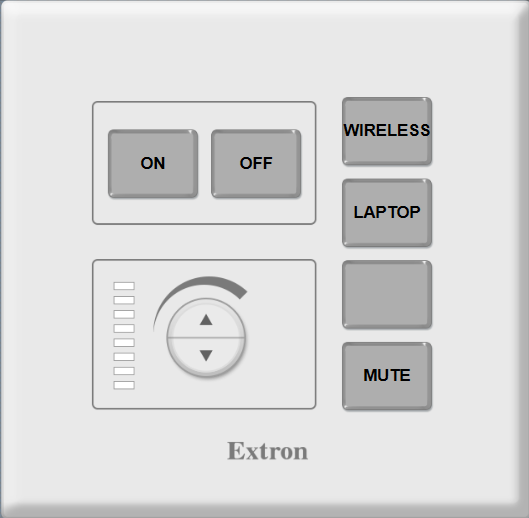
This guide covers the room's Extron AV system and wireless ClickShare presenting. Use the wall-mounted Extron control panel to power the system, choose a source, and manage audio.
Dual mirrored projectors: This room uses two projectors that always display the same content simultaneously.
Starting the System
1
Press ONThe ON button is in the top-left section of the Extron panel.
2
What happens nextThe dual projectors power up, the projection screens lower, and program audio automatically unmutes. Allow a few moments for the projectors to reach full brightness.
Video Sources
Select Your InputWireless or Laptop
Once the system is on, choose where your presentation is coming from using the source buttons on the right side of the Extron panel.
Source Selection
1
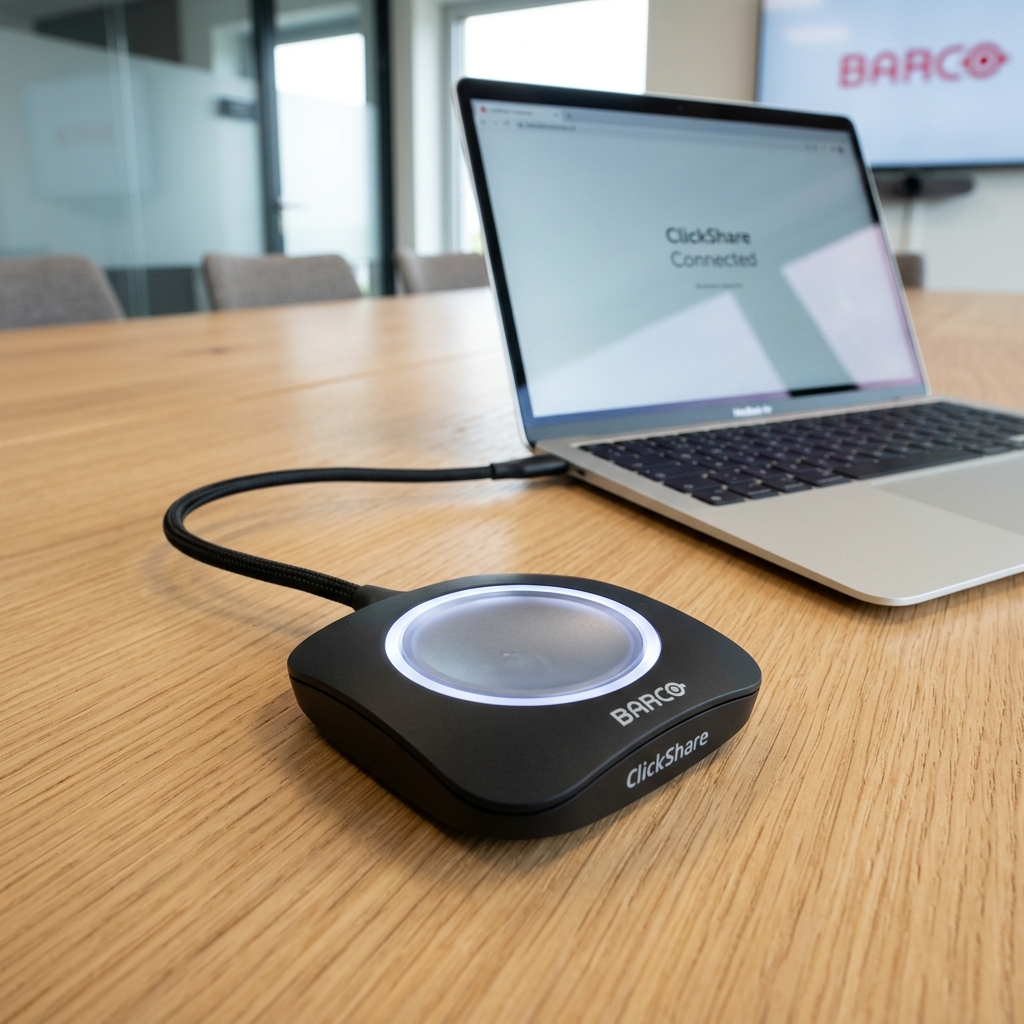
WIRELESSPresent wirelessly using the room's Barco ClickShare system.
2
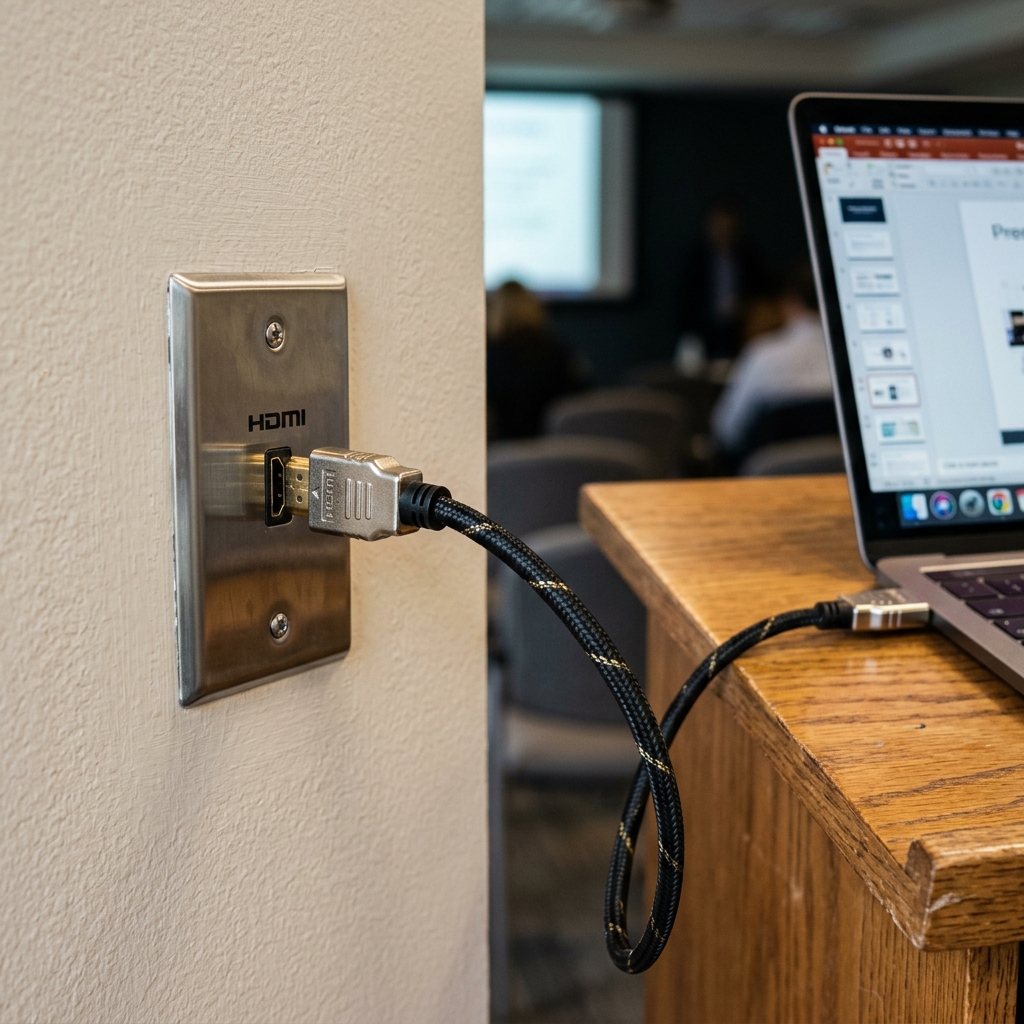
LAPTOPPresent from a physical device plugged into the room's HDMI wallplate.
HDMI Wallplate
1
Plug in your HDMI cableConnect your laptop's HDMI cable to the wallplate in the room.
2
Press LAPTOP on the Extron panelThis routes the HDMI signal to both mirrored projectors.
Wireless ClickShare
Two MethodsUSB-C Button or Desktop App
Before you start: Press WIRELESS on the Extron control panel so the projectors are ready to receive the signal.
Method A — USB-C Button
The easiest way to share your screen is with the physical Barco ClickShare Button provided in the room.
1
Plug it inInsert the USB-C ClickShare Button into an available port on your laptop.
2
Wait for the lightThe LED ring flashes white while connecting. Once it turns solid, steady white, it's ready. First-time use may prompt you to open the ClickShare executable on the newly mounted USB drive.
3
Press to sharePress the center of the button. The LED ring turns red — your screen is now sharing to the projectors.
4
Stop sharingPress the button again. The light returns to solid white.
Method B — Desktop App
If your laptop lacks a USB-C port — or you prefer not to use the physical button — connect directly to ClickShare's built-in Wi-Fi and use the desktop app.
1
Connect to ClickShare Wi-FiOpen your computer's Wi-Fi settings and look for the room's ClickShare network (usually named after the room or starting with ClickShare-).
2
Enter the passwordIf prompted, the password is typically clickshare (unless a custom password is listed on the projector screen).
3
Open the appLaunch the ClickShare Desktop App. If you don't have it installed, download it free from the Barco website.
4
Enter the PIN (if prompted)The app may ask for a 4-digit PIN — it will be displayed on the projector screen.
5
Start sharingClick the white circular Share icon to begin presenting. The icon turns red while you're live — click again to stop.
Audio & Shutdown
VolumeMicrophonePower Off
Program Volume
1
Adjust presentation volume (videos, computer audio) using the up / down arrows on the dial in the bottom-left corner of the Extron panel. The LED lights next to the dial show the current volume level.
System Mute
1
Press MUTE on the bottom right of the Extron panel to instantly silence audio from your laptop or wireless presentation.
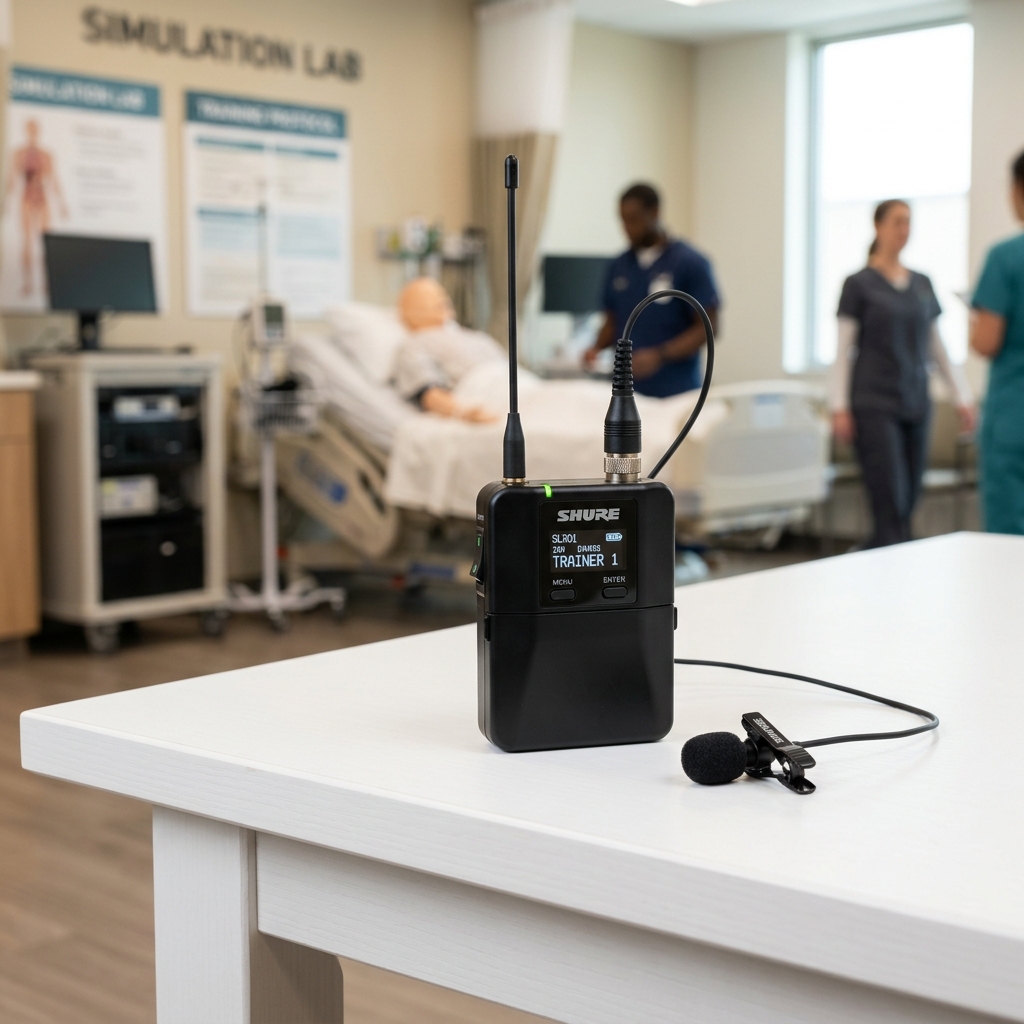
Wireless Microphone
Operates independently of the Extron panel
The wireless microphone is permanently reinforced and will output audio regardless of whether the main system is ON or OFF. To mute, use the physical power / mute switch on the microphone itself.
Shutting Down
1
Press OFFThe OFF button is located next to the ON button on the Extron panel.
2
What happens nextThe projectors power down, the screens automatically raise, and program audio is muted.
Tip: Always shut down the system when finished to extend projector lamp life.