
AV User Guide
AV User Guide
Room Control Panel
Window Fog
Press the Window Fog button on the control panel to toggle the privacy glass between clear and frosted.
The control panel manages room-level features including privacy glass. For AV and meeting controls, use the Zoom Room controller on the conference table.
Scheduling & Starting Meetings
Starting a Meeting
1
Schedule a Meeting
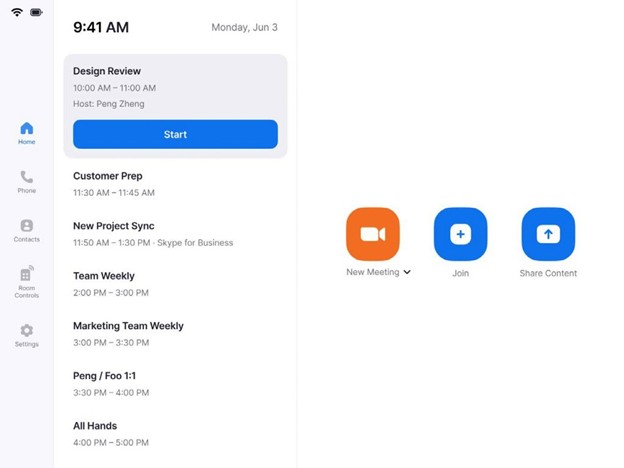
Schedule meetings via the Zoom web portal or directly from the Zoom Room by selecting "Schedule" on the controller.
2
Join a Scheduled Meeting
Tap "Meetings" on the controller and select the meeting you wish to start.
3
Start an Impromptu Meeting
Select "New Meeting" on the controller to begin an unscheduled meeting instantly.
Sharing Content & Collaboration
Screen Sharing
1
Share Your Screen
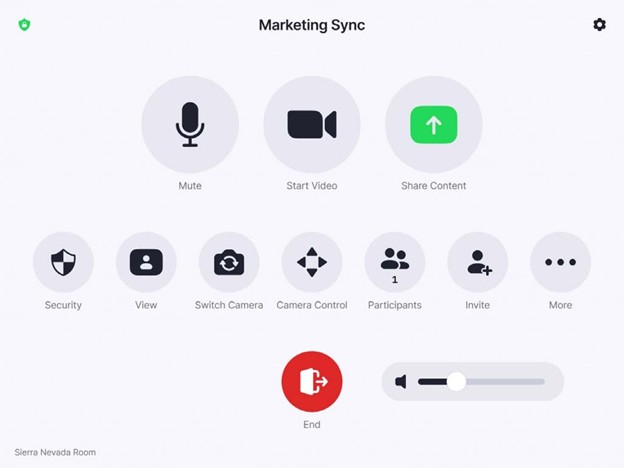
Select "Share Content" on the controller and choose the source you wish to present.
2
Annotation Tools
Use the on-screen annotation tools to mark up and collaborate during a screen share session.
3
Stop Sharing
Tap "Stop Share" on the controller to end the screen share session.
Camera Control
Pan, Tilt & Zoom (PTZ)
Press Camera Control on the controller to access pan, tilt, and zoom adjustments, enable auto-framing, or select from saved preset positions for quick camera angle changes.
Auto-Framing
Enable auto-framing to let the camera automatically track and frame participants for optimal video composition throughout the meeting.