



Conductor
Digital Instructions
User Guide: Ice Rink Party Room
CK021553
Galleria Dallas - 1st Floor
1. Getting Started
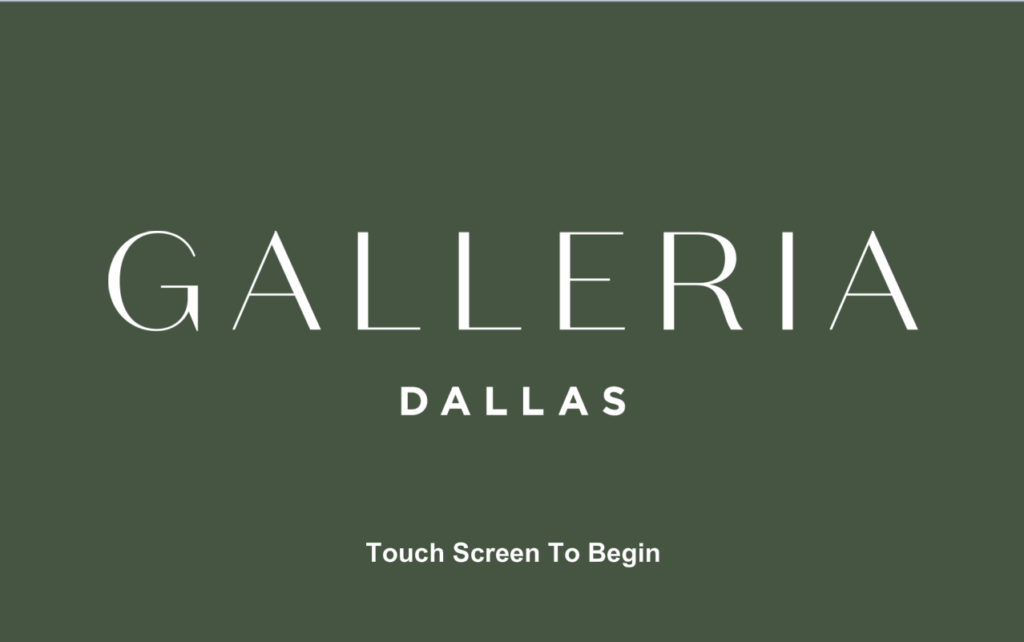
To begin, simply walk up to the Crestron Touch Panel mounted on the wall. If the screen is dark, tap it once to wake it up.
- If the room is OFF: You will see the Galleria logo as shown above. Tap anywhere to begin.
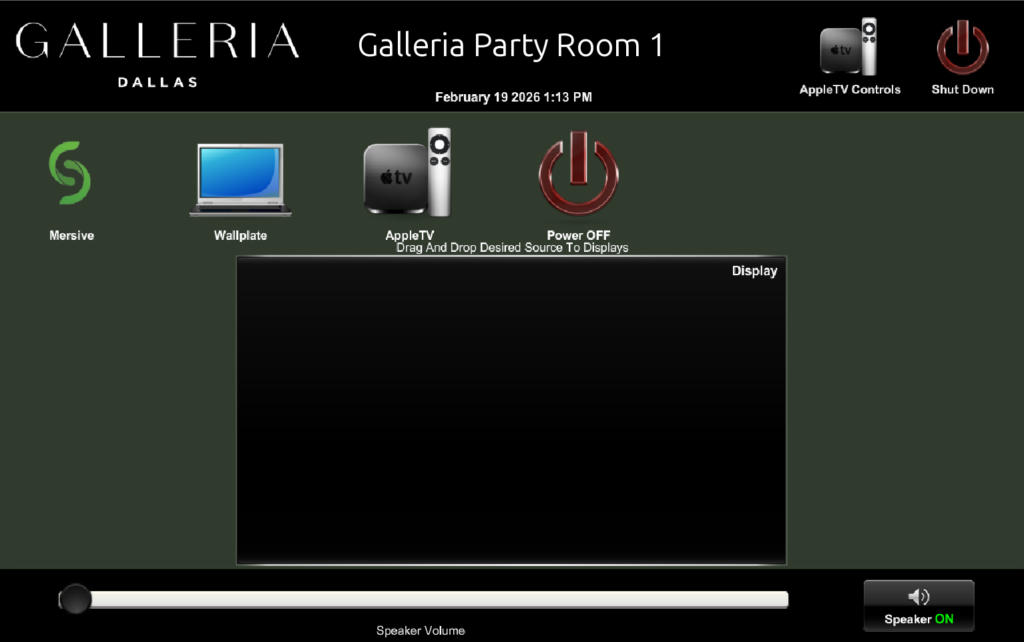
- If the room is already ON: You will see the main control menu.
2. Room Modes (The Dividing Wall)
The system automatically knows if the dividing wall is open or closed.
Independent Mode (Wall Closed)
When the wall is closed, Room 1 and Room 2 act as separate spaces.
- Use the touch panel in Room 1 to control the TV in Room 1.
- Use the touch panel in Room 2 to control the TV in Room 2.
Combined Mode (Wall Open)
When the wall is opened, the two rooms operate in a Combined state.
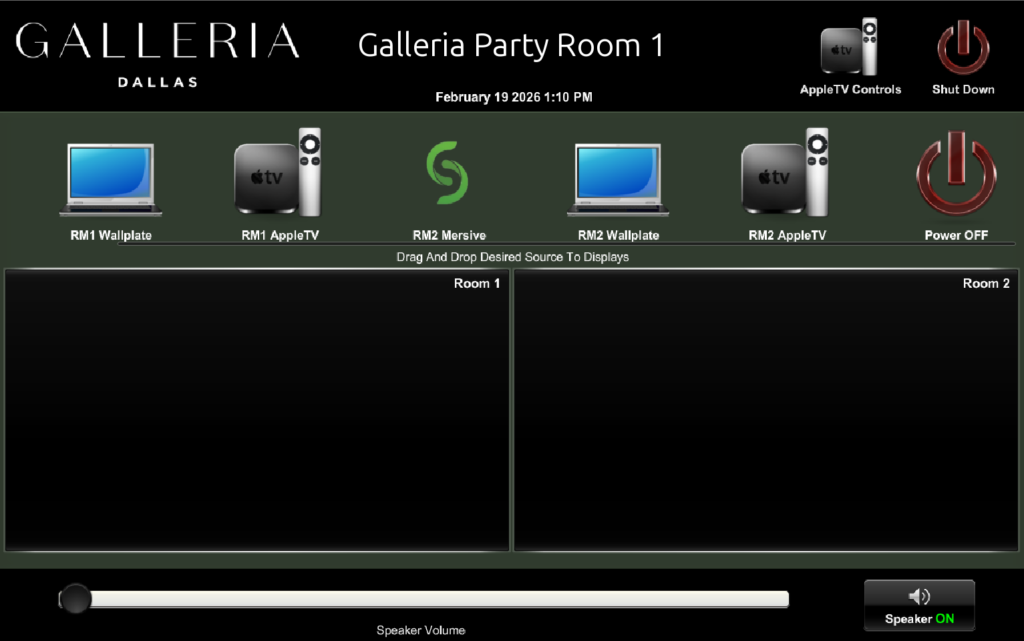
- The touch panel in Room 1 (Galleria Party Room 1) will control the entire space.
- Audio will play through all 12 ceiling speakers at once.
- Independent Routing: Both TVs are visible on the panel. You can drag and drop any source from either room to either display independently. They do not have to show the same content.
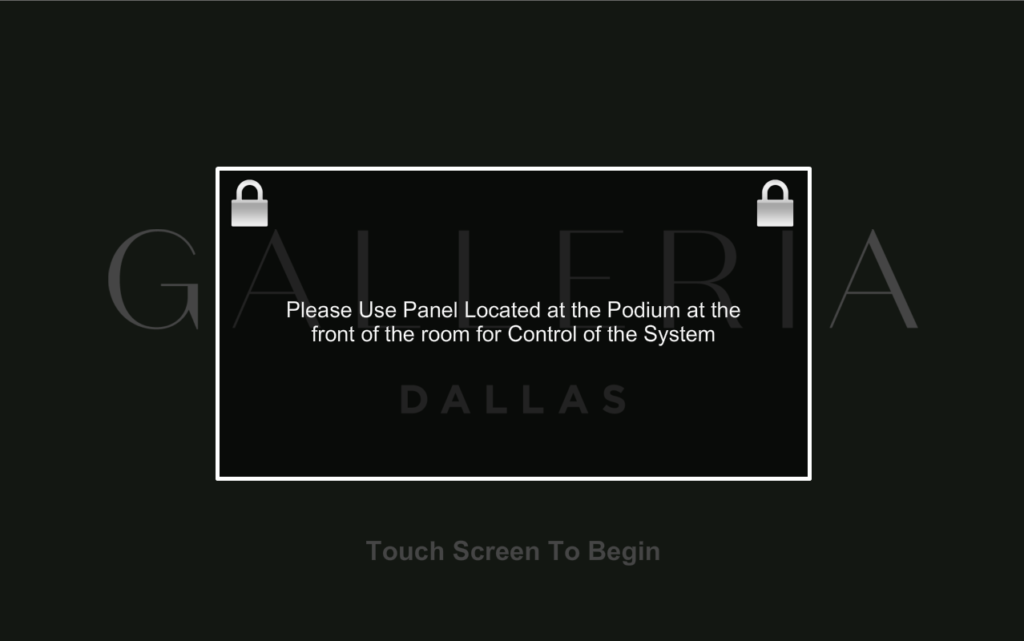
Note on Room 2 Control: When combined, the touch panel in Room 2 will automatically lock to prevent conflicting commands. You will see a “Locked” message on the screen.
3. Admin & Advanced Settings
For facility managers and administrators, there is a hidden settings menu to control room behavior.
How to Access
- Go to the main Routing page (the screen showing TVs and sources).
- Press and hold the Galleria logo in the top-left corner of the screen for 3 seconds.
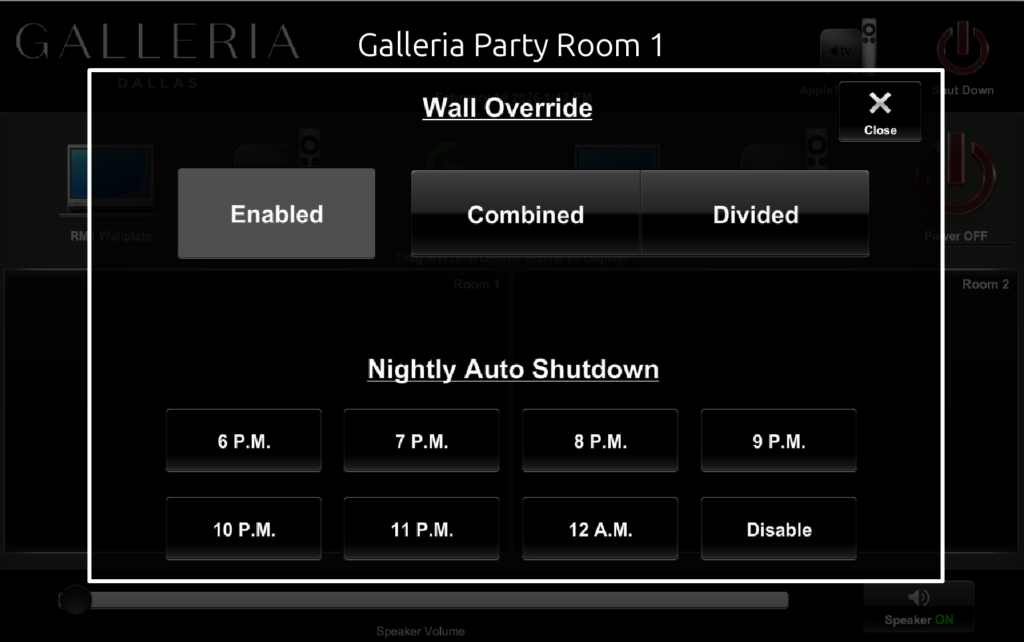
- The Admin Menu will pop up as shown below.
🔓 Wall Override
If the system implies the partition wall is in the wrong position, you can use the Wall Override buttons to manually tell the system if the rooms are “Combined” or “Divided.”
🌙 Nightly Auto Shutdown
To save energy and ensure the life of the displays, the system can automatically shut down at a specific time.
- You can choose a time (6 P.M. – 12 A.M.) or select Disable if you have a special late-night event.
4. How to Show Content
To show content, simply drag and drop one of the sources at the top of the screen onto the TV icons below.
🍎 Apple TV
- Select Apple TV on the touch panel.
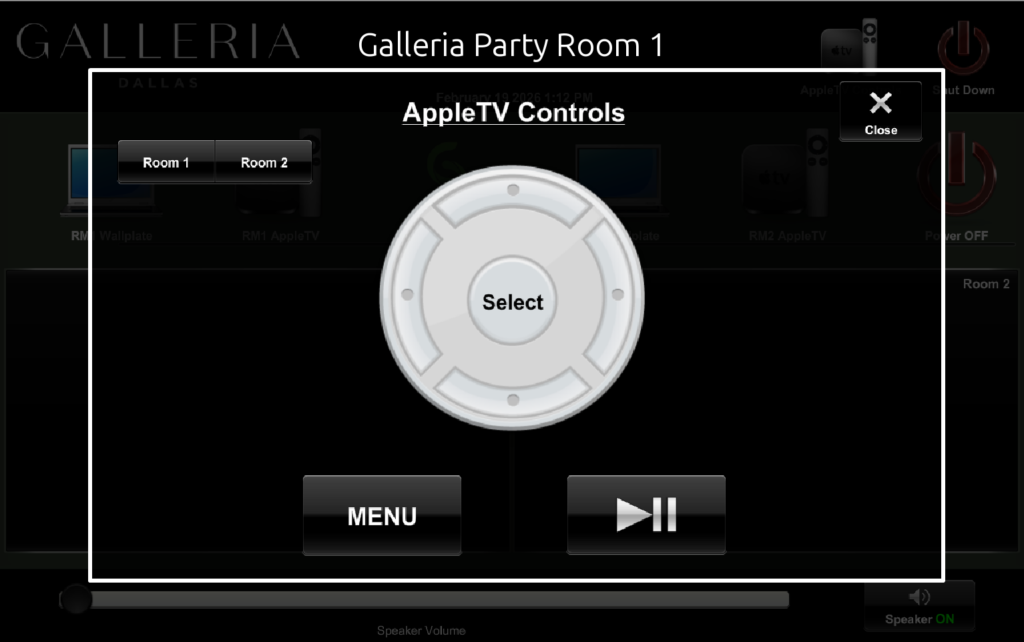
- Use the on-screen controls to navigate apps (Netflix, YouTube, etc.).
- AirPlay: You can wirelessly “beam” your iPhone or iPad screen to the TV by selecting the room’s name in your device’s AirPlay menu.
💻 Wallplate (Laptop)
- Plug your laptop into the HDMI port on the wall plate using a cable.
- Drag the Wallplate icon onto the TV icon.
- Your laptop screen should appear automatically.
📶 Mersive (Wireless Presentation)
- Drag the Mersive icon onto the TV icon.
- Follow the instructions on the TV screen.
- You will need to download the Solstice app or use a web browser to share your screen without any cables.
🔌 Power OFF (Display Only)
If you want to turn off the TV but keep the audio playing (for instance, if you only want background music):
- Drag the Power OFF icon onto the TV icon.
- The TV will turn off, but the audio from your last selected source will continue to play through the ceiling speakers.
5. Controlling Audio
- Volume Slider: Slide the bar at the bottom of the screen to the right to increase volume, or to the left to decrease it.
- Mute: Tap the Speaker icon to quickly silence the audio. Tap it again to bring the sound back.
6. Shutting Down
When your event is over, please help us save energy:
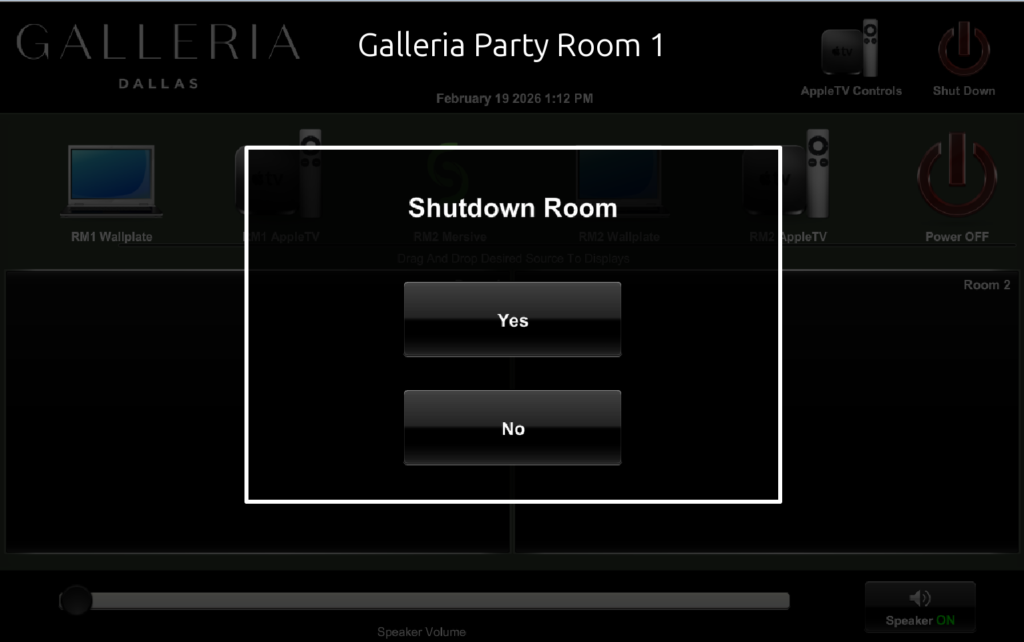
- Tap the Shut Down button in the top-right corner of the touch panel.
- Confirm by tapping Yes.
- The entire system, including TVs and speakers, will turn off.
❓ Need Help?
If the system isn’t responding as expected:
- Ensure all cables are plugged in tightly.
- Check that your laptop is set to “Mirror” or “Extend” its display.
- If you still need assistance, please contact the Management Office.