1st Floor Boardroom
What are you trying to do?
Tap your task — we'll take you right there.
Join a Meeting
Scheduled, ID, or QR
Share Content
HDMI, wireless & AirMedia
Room Controls
Camera & content routing
Troubleshooting
Common issues & quick fixes
Teams Console Home Screen
Every button, explained
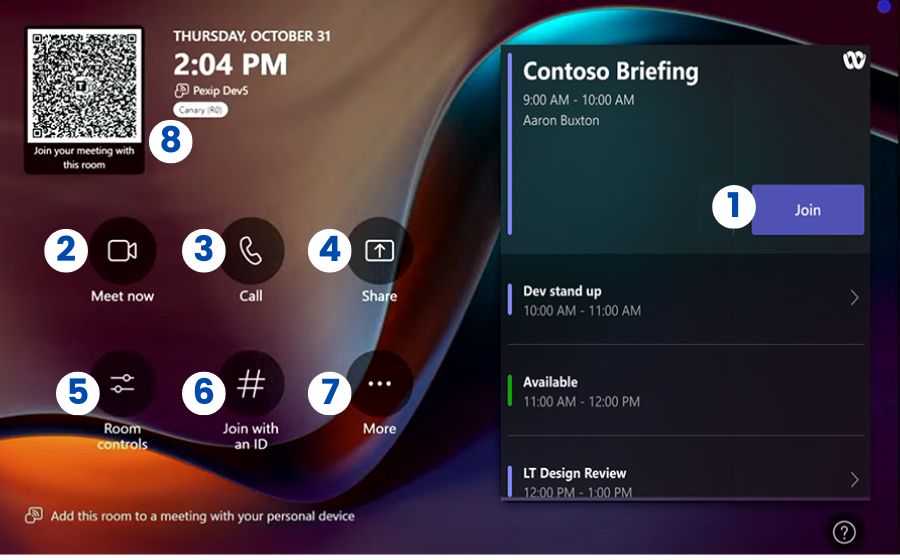
This is the touch console on the table — the main screen when the room is idle. Everything starts here.
Join a Scheduled Meeting
One touch from the calendar
Meetings booked for this room appear on the console calendar. Just tap Join next to your meeting to connect.
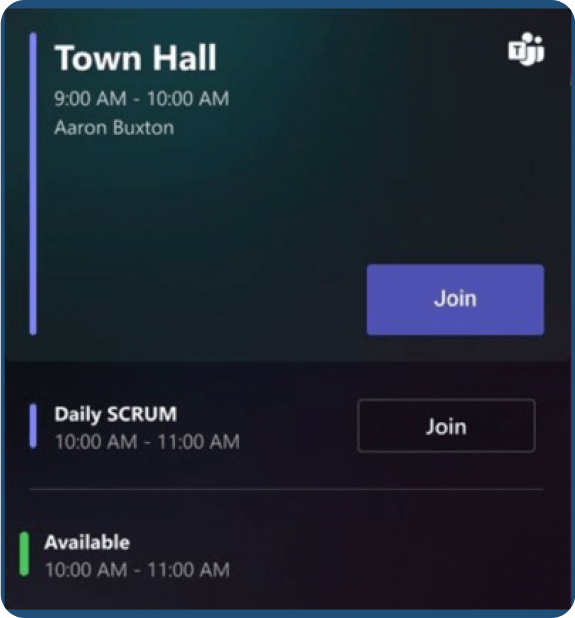
Don't see it? Forward the invite to the room, or use Join with an ID below.
Join from Your Phone (QR)
Scan the code on the screen
A QR code is always shown on the console and the room display (it refreshes every minute). Scan it with your phone camera to:
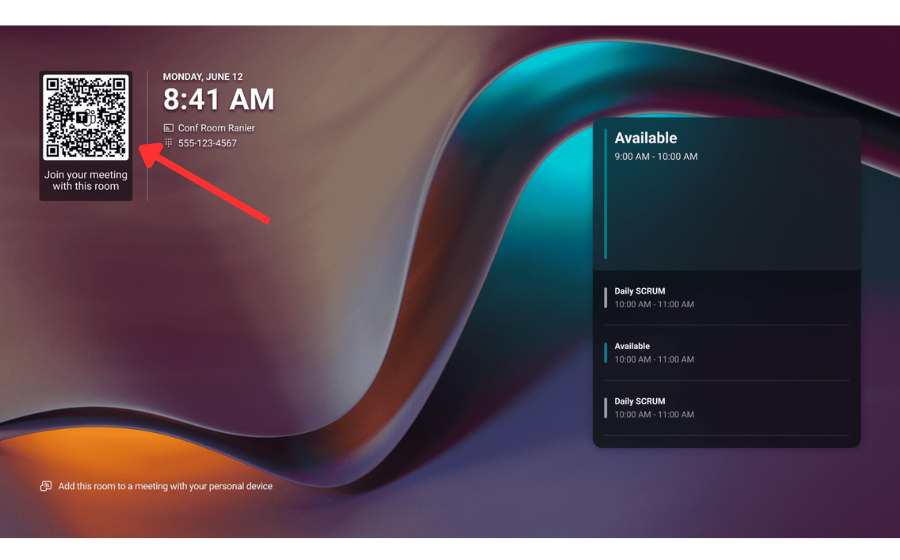
- Join a meeting happening now or starting within 10 minutes
- Start an ad-hoc meeting on the room
- Cast content from your phone to the room display
Choose an action within ~2 minutes — after that, someone taps Accept at the console for security.
Join with an ID
Meetings not on the room calendar
Add the Room to a Meeting
Book it from Outlook ahead of time
To get the one-touch Join button, add this room to your meeting in Outlook or Teams (search for it in Room Finder, or forward the invite). It appears on the console within a few minutes.
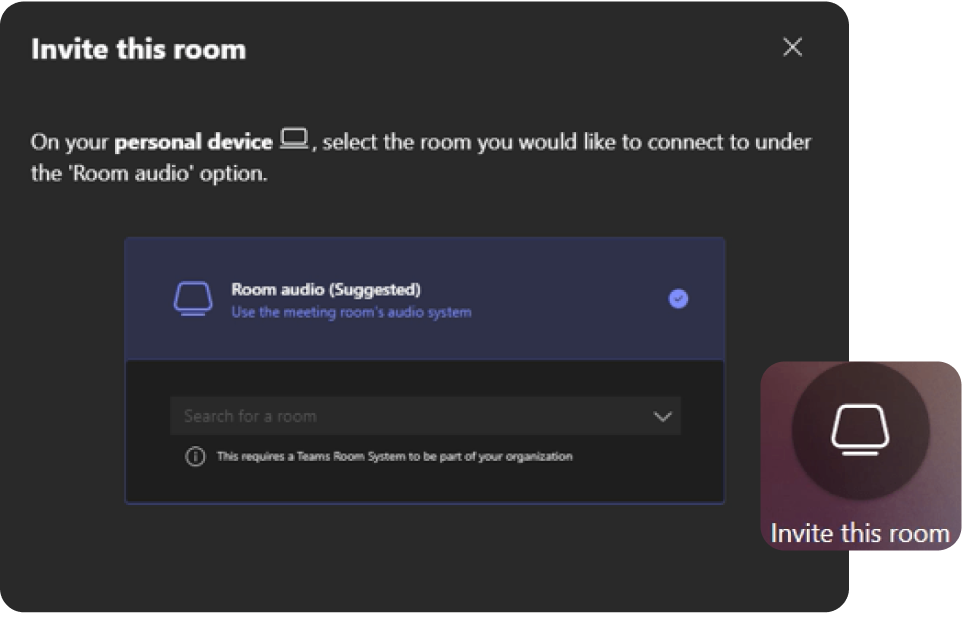
Join from Your Laptop Too
Use it alongside the room
Open the meeting in the Teams app near the room and choose Add this room, or scan the QR code, to share content and see chat from your own device.
When prompted, select Don't use audio so the room handles the sound.
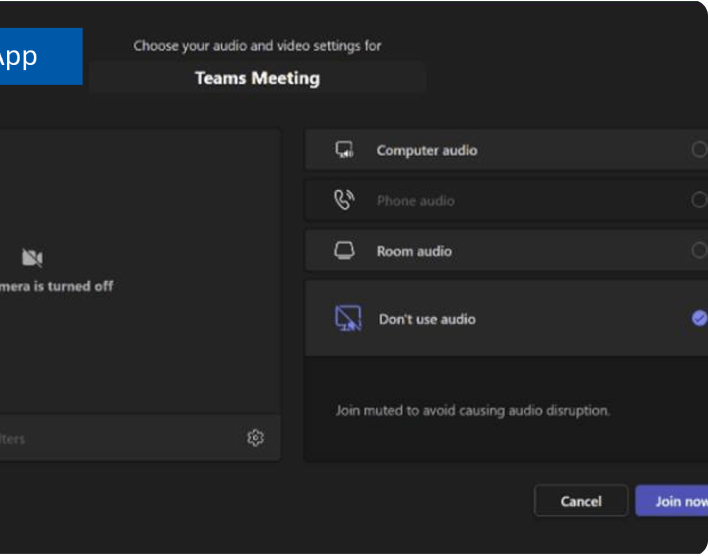
Avoid echo: if you join from a laptop in the room, keep its mic and speakers muted.
Share Wirelessly in Teams
Cast from the Teams app
In a meeting or not, tap Share on the console and pick Cast.
From the Teams desktop app: Settings and more (…) → Cast → choose this room → pick your screen → Cast.
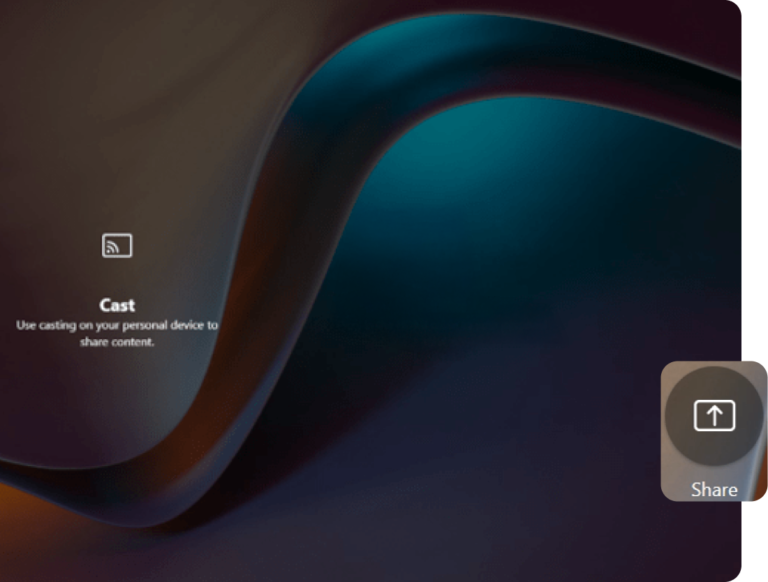
A colored frame around your content means it's live to everyone in the meeting.
Present a Laptop with HDMI
Wired from the table
Plug in first: make sure the HDMI cable for the source you pick is actually connected, or the display stays blank.
Present Wirelessly with AirMedia
For guests — no cable, no Teams
AirMedia lets anyone share wirelessly from a laptop or phone — perfect for guests who aren't on Teams.
Full camera & content steps are on the Room Controls tab below.
Start a Meeting (Meet now)
An instant, unscheduled meeting
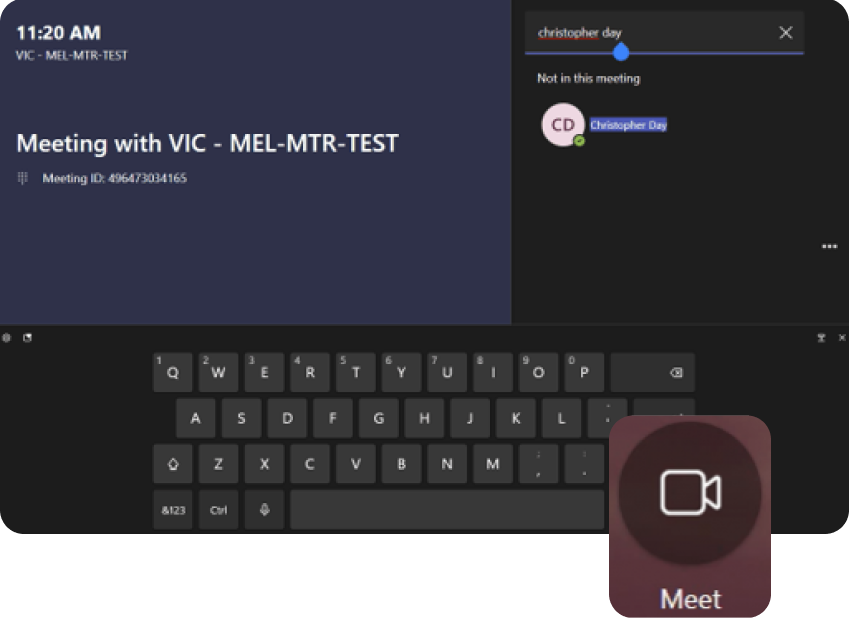
Tap Meet now on the home screen to start a meeting right away, then invite people by name or number.
Make a Call
Dial a phone number
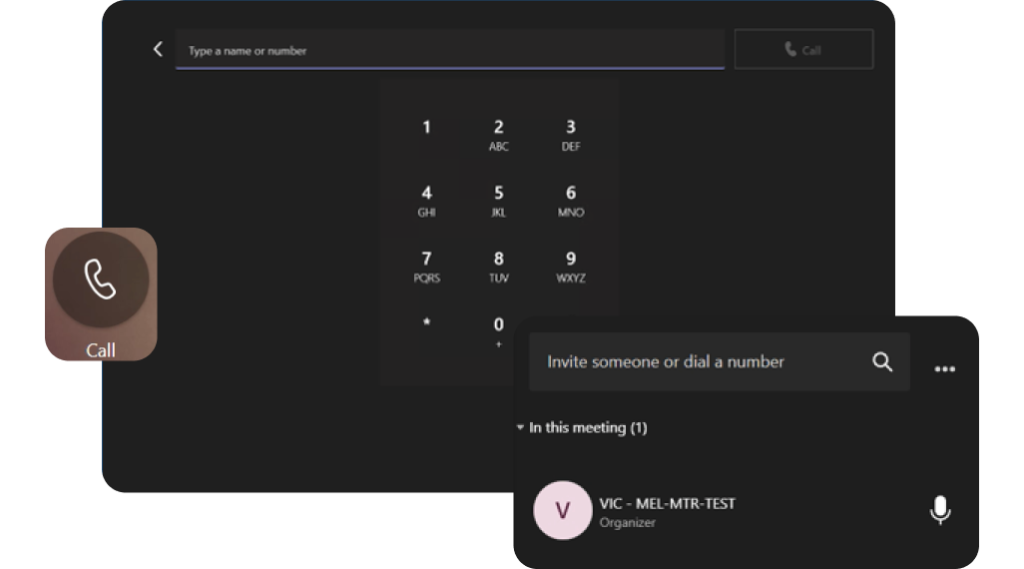
Tap Call to open the dial pad, enter the number, and press Call.
Meeting Controls
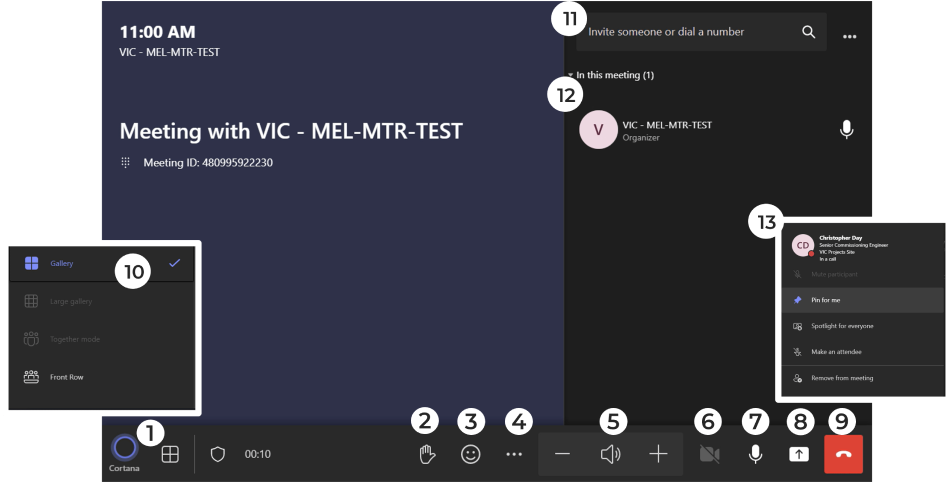
The in-call bar, explained
During a meeting, the control bar runs along the bottom of the console.
Change the View
Gallery, Together & Front row
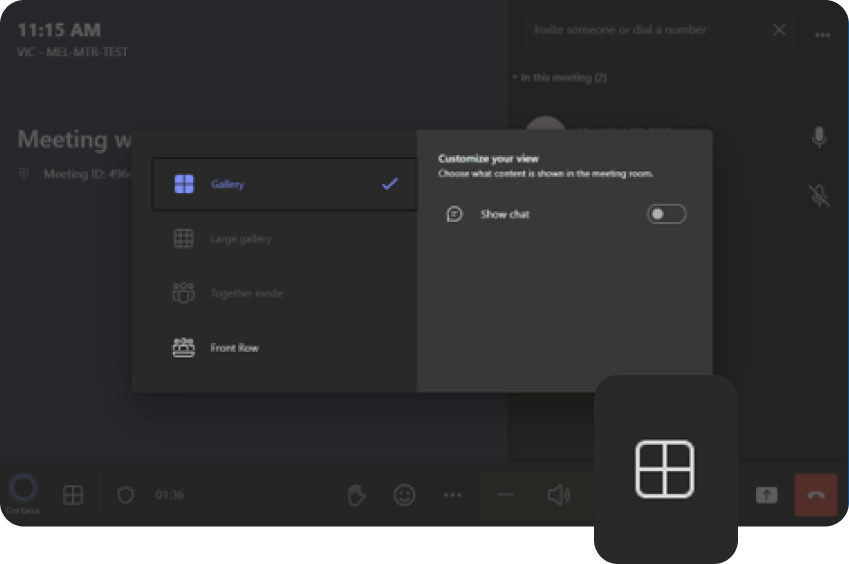
Tap View in the control bar to switch between Gallery, Large gallery, Together mode, and Front row. You can also show meeting chat.
The Room Controls Page
A dedicated page on the console for the camera and content. Open it from the Teams home screen — tap Room controls — and tap Return to Teams when you're done.
PTZ pad — pan & tilt the camera with the arrows; tap Home to recenter.
Zoom — tap + Zoom / – Zoom to zoom in and out.
Presets 1–4 — tap to recall a saved view; press & hold to save a new one.
Auto Tracking — auto-frames whoever is speaking (disables the manual pad).
Content Source — send Table HDMI 1, Table HDMI 2, or AirMedia to the display.
Clear Route — remove the current source from the display.
Return to Teams — go back to the normal Teams console.
Camera Controls
Pan, zoom, presets & tracking
Aim the room camera right from the touch console.
Tap a preset to recall · press & hold to save
Move the camera
Save & recall presets
Auto Tracking
Turn Auto Tracking ON and the camera automatically frames whoever is speaking — hands-free.
While Auto Tracking is ON, the manual pad and presets are disabled. Turn it OFF to aim the camera yourself.
Content Routing & Sources
Pick what shows on the display
Choose which source appears on the room display. Tap a source to show it.
Show a source on the display
Plug in the cable for the HDMI source you pick — if nothing is connected, the screen stays blank.
What each source is
- Table HDMI 1 / 2 — a laptop plugged into the table cables
- AirMedia — wireless presenting, no cable needed
- Clear Route — clears the display
Nothing on the room display?
Open Room Controls and pick a source (Table HDMI 1/2 or AirMedia). Make sure the HDMI cable is plugged in and the display is on.
Camera won't pan or zoom?
Auto Tracking is probably ON — it locks out manual control. Turn it OFF to use the pad and presets.
Wireless share won't connect?
For Teams, use Cast. For guests, select AirMedia in Room Controls and follow the on-screen code. Confirm you're on the network.
Don't see your meeting?
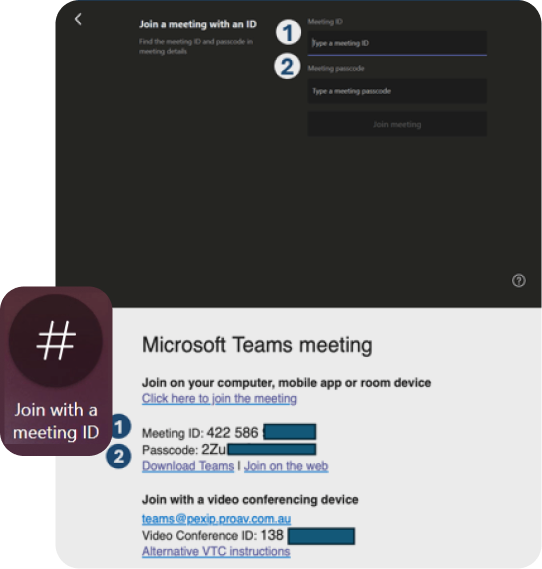
Forward the invite to the room, or tap Join with an ID and enter the meeting ID and passcode.
They can't hear you?
Check the Mute button on the console and make sure the table microphones aren't muted.
Echo on the call?
If you also joined from a laptop in the room, mute its mic and speakers.
Call or email Taurus support — we're here to help.
(469) 630-9909
tech@taurustechinc.com