Cowboys Conference Room
What are you trying to do?
Tap your task — we'll take you right there.
Join a Meeting
Scheduled, Meet Now, ID or QR
Share Content
Clickshare, HDMI or cast from Teams
Room Controls
Source, lights & camera
Troubleshooting
Common issues & contact
Teams Room Main Screen
Calendar, action buttons & QR join
This is the main screen the Microsoft Teams Room shows while not in use. From here you can join meetings, start ad-hoc calls, share content, and open the custom Room Controls page.
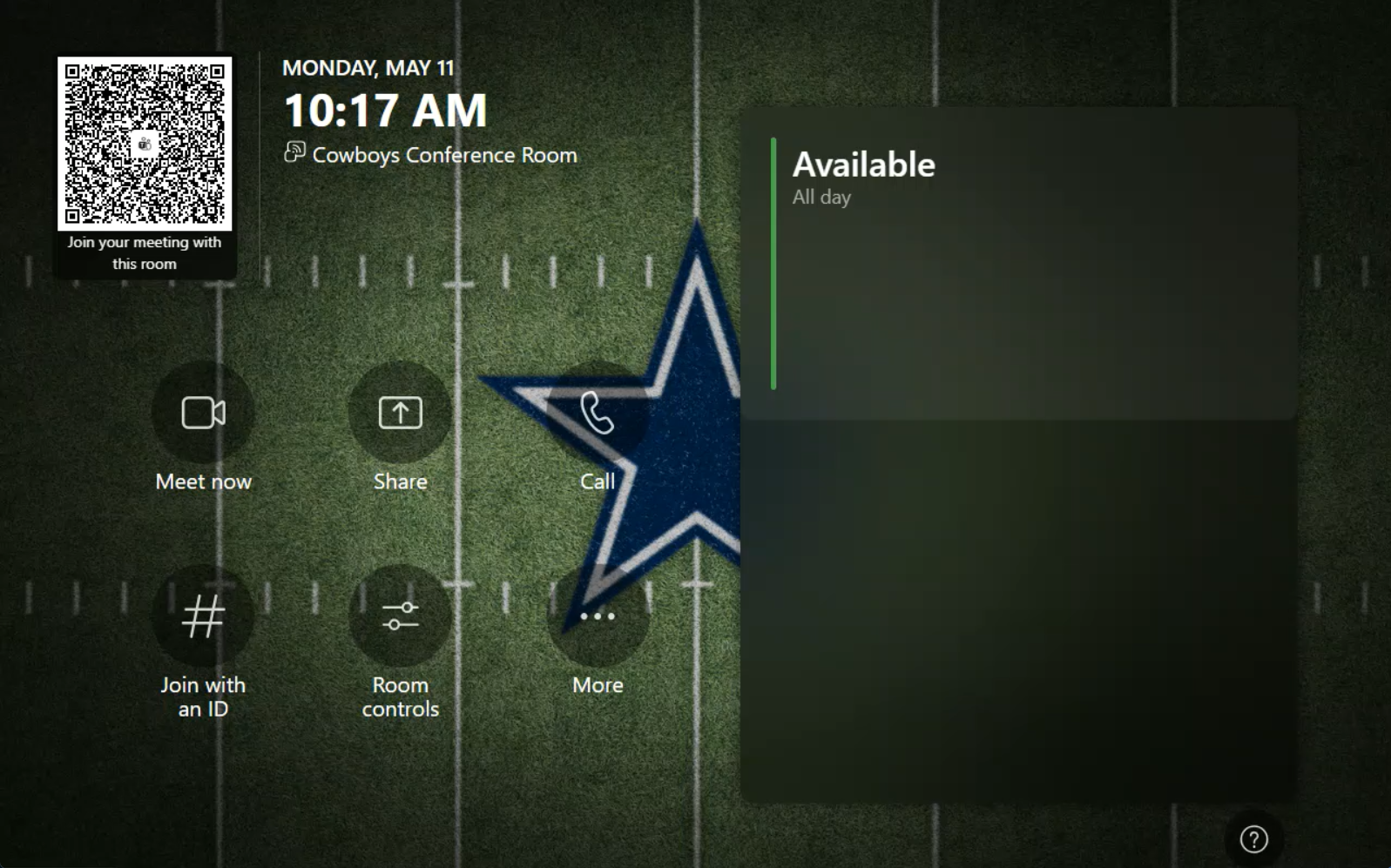
Join a Scheduled Meeting
Tap the meeting on the right-side calendar
When meetings are scheduled for the room, they appear on the calendar panel on the right of the main screen. Tap the meeting tile to join.
For a meeting to appear on the room calendar, the organizer needs to invite this room when scheduling — same as inviting an attendee.
Start a Meeting (Meet Now)
Spin up an ad-hoc Teams meeting on the spot
Join with a Meeting ID
Enter the Teams meeting ID and passcode
Join with the QR Code
Scan from your phone to join wirelessly
The QR code in the top-left of the main screen lets you join, share, or start a meeting from your mobile device — no Bluetooth pairing or cables required.
The QR code refreshes every 60 seconds for security.
Make a Call
Call a colleague by name or email
Note: External phone numbers cannot be dialed directly from this room — the call feature is for the internal directory only.
Invite the Room from Your Laptop
Use Room audio when joining the meeting
The room joins the meeting automatically. Your laptop joins too, but with its mic and speakers muted to prevent echo.
Keep Bluetooth on on your laptop so it can detect the room nearby.
Share Wired via HDMI
Plug into the HDMI input at the table
Open Room Controls
The custom page unique to this room
This is the only page with custom controls — Content Source, Lighting, and Camera Controls all live here. Open it from the main screen.
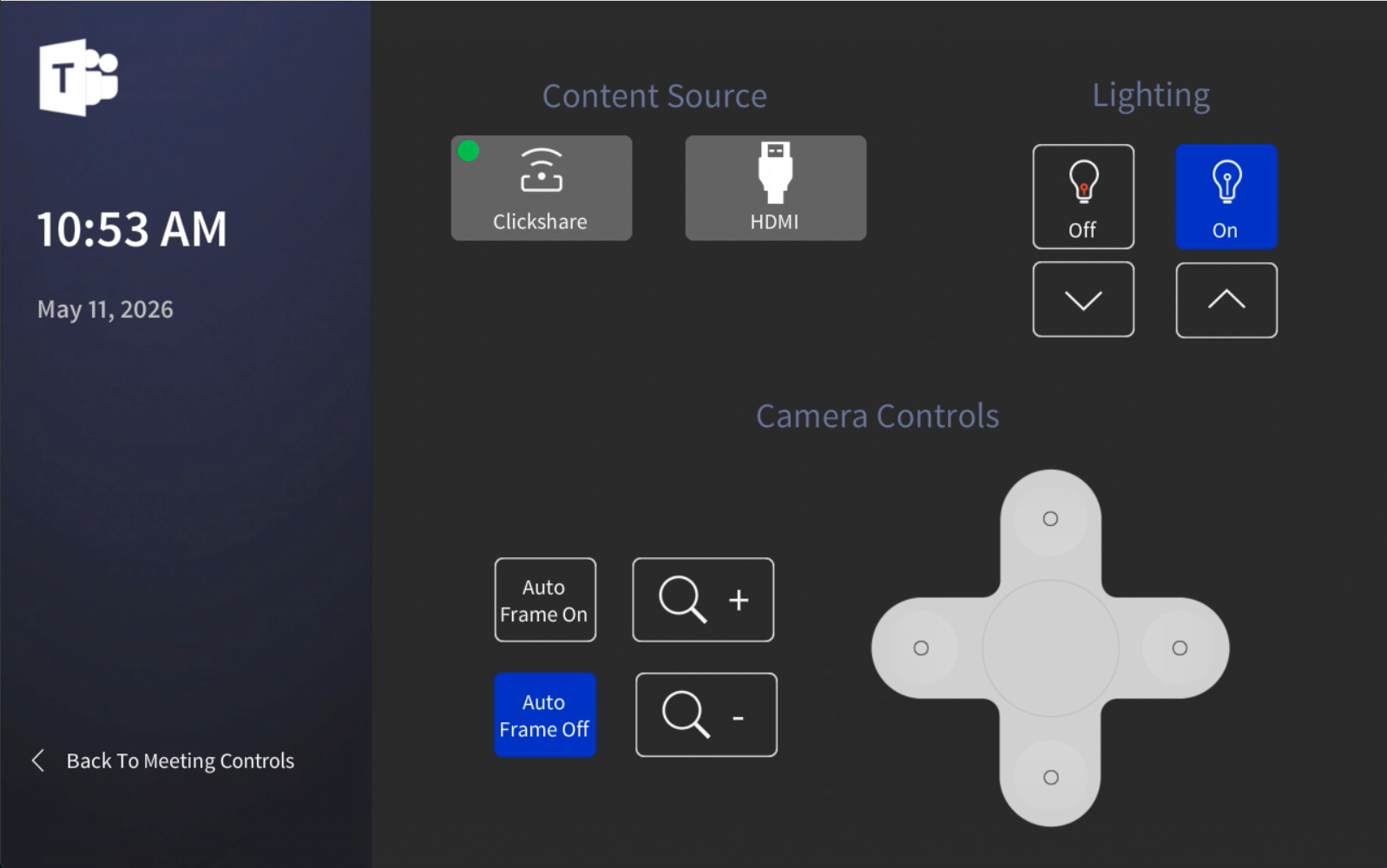
Content Source — Clickshare or HDMI
Pick wireless or wired sharing
- Clickshare — wireless sharing. When selected, on-screen instructions guide you through connecting your device.
- HDMI — wired sharing. Plug your laptop into the HDMI input at the table, then tap HDMI to display it.
The currently selected source shows a small green dot in the top-left of its tile.
Lighting
On / off and brightness up / down
- On / Off — turn the room lights on or off.
- Up / Down arrows — adjust the brightness level in the room.
Camera Controls
PTZ, zoom, and Auto Frame
The camera controls let you manually frame the room or hand off to the camera's automatic framing intelligence.
Manual PTZ
- Up / Down / Left / Right — pan and tilt the camera using the directional pad.
- Zoom + / Zoom − — zoom in or out.
Auto Frame
Tap Auto Frame On to let the camera frame people in the room automatically. It moves and re-frames individuals dynamically — you don't need to adjust anything during the meeting. Tap Auto Frame Off to take back manual control.
Display shows nothing?
Make sure the display is powered on (use its IR remote if needed) and that the correct input is selected. If you're trying to share content, confirm you picked the matching Content Source — Clickshare or HDMI — on the Room Controls page.
HDMI isn't showing your laptop?
Check the cable is fully seated at the table HDMI input and on your laptop. On the Room Controls page, confirm HDMI is selected as the Content Source (green dot in the top-left of the tile).
Clickshare won't connect?
Make sure Clickshare is selected on the Room Controls page first — the on-screen instructions only appear once it's the active source. Then follow the instructions on the room display to pair your device.
Don't see your meeting on the calendar?
The organizer needs to invite this room when scheduling. Forward the invite to the room and wait a minute, or join manually with the meeting ID.
Far end can't hear you?
Make sure the room microphones aren't muted — check the mic indicator on the in-meeting toolbar. If you joined from your laptop as well, mute the laptop mic and speakers to prevent echo.
Camera framing is off?
If Auto Frame is on but cutting people off, tap Auto Frame Off and use the PTZ and zoom controls to frame manually. Toggle Auto Frame back on once everyone is seated.
Room is too dark or too bright?
Open Room Controls and use the Lighting up / down arrows to adjust the level. Tap On / Off to fully cycle the lights.
Call or email us — we love to help.
(469) 630-9909
tech@taurustechinc.com